TL;DR: Social networks are great for spreading the word about almost anything. Ads on them, not so much.
I had a Doxie One to giveaway, and picked to give it away on April 1st as a inverse joke of sorts. This one’s the joke that’s actually real, everyone! Not exactly the best idea ever, since everyone seemed to ignore the giveaway the first day it was online, assuming it was just another April Fools’ joke, only one a lot less funny than the rest.
Yet, it was no joke. I had a real, $149 scanner courtesy of the Doxie team to giveaway, and I wanted to spread the word far and wide. What better place to spread the word about anything than social networks? The entries were trickling in from my existing follower base and their friends as the message shared, but I wanted more.
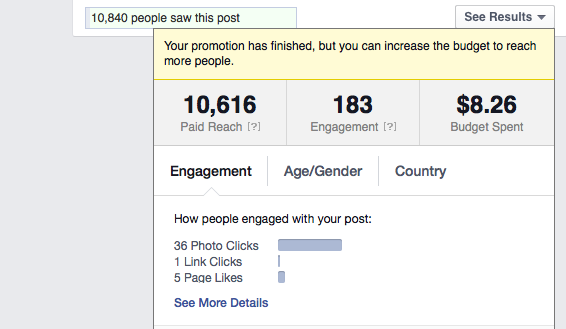
And so, I decided to do a little experiment. Every time you post something on a Facebook Fan Page these days, it prompts you to promote the post for money. I decided to take them up on it, for once. I’d promote the post to an audience of people who should be interested in a Doxie One (people who liked Evernote, Microsoft Office, and a few other things) in English speaking countries (since my post was in English), and limit the budget to the minimum possible ($15). The post told people that I was giving away a Doxie One, and to like the page and comment on that post to enter the giveaway. That’s not too much work to have a shot at a $149 scanner, and I figured I’d at least grow my page’s fan count, regardless of how unimportant that is with the new Facebook feed.
I did almost the same thing on Twitter, targeting people who were interested in Technology and liked Evernote, Doxie, and OneNote. You have to set a bid cost for clicks on Twitter as well; I’m cheap, so I went for half of the $1.15 they’d suggested. And I gave the campaign the same budget as Facebook’s, this time telling people to follow my page and share the post to enter.
You’d figure you’d get at least something for $30 of ads on the two hottest properties online today.
Not so fast.
Twitter says I got 5 new followers and Facebook claims 10 new likes on my page thanks to ads. And yet, my Facebook page likes actually only went up by 7, and my new Twitter followers are all people who already followed my personal Twitter account. Twitter says I got a total of 319 clicks to my site link thanks to the ad, and Facebook got 159 people to like my post and 6 people to click through to my site.
And yet, of all those, not one actually did what I said to enter the giveaway. No one commented on the Facebook posts, and the only people who shared the Twitter post were ones who would have seen it through my other account already. I got a ton of likes on the Facebook post itself, but that’s worth zero—page likes were what I was after, along with spreading the word about the giveaway, but apparently people clicked like on a picture post without even reading what it said.
Perhaps my targeting was too broad; I just saw a post today talking about how well Facebook mobile ads had worked for marketing an app with very specific targeting. I was trying to get a broad spectrum of viewers, and yet, perhaps that broad spectrum was less specifically interested in what I was offering.
Ads are a tough thing to actually get to work out well. If you’re Coke, you’re just trying to keep your brand’s name in people’s minds. With that, almost every possible ad buy is justifiable. But if you’ve got a specific goal in mind with your ad—getting people to share your content or directly purchase your product—Facebook and Twitter’s “targeting” isn’t going to magically bring the right people to your doorstep.
You might get a lot of likes on a post. But that’s not worth anything. You’re far better off focusing on your existing followers, and growing them naturally through quality products and posts. Even if you’re giving something away, the vast majority of people simply won’t notice if you’re telling them in an ad.
If you already owned Office 2011 for Mac or individual copies of Word, Excel, or PowerPoint for Mac, and also have an Office 365 subscription (perhaps so you could use Office for iPad), you can actually go ahead and switch your currently installed copy of Office for Mac to Office 365 if you want. That way, you can get all of the Office apps and features—Outlook, say, if you had the Home edition, or all the other apps if you only owned one of them—on your Mac. Plus, you could free up that original license to perhaps install on an older Mac you've handed down.
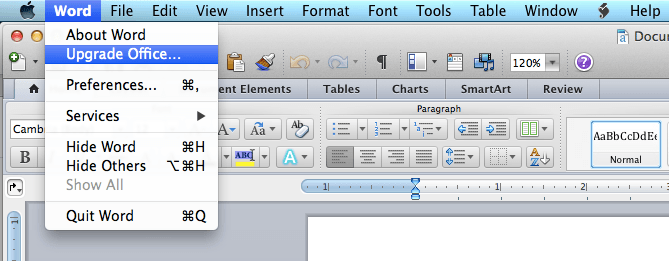
Here's what you need to do. Just make sure you've installed the latest updates, then open any of the Office apps you have installed, click their app name in the menu, and select *Upgrade Office...
Then, in the Getting Started dialog that'll open, select Sign in to an existing Office 365 subscription. Sign in with your Microsoft account, and seconds later your license will be switched to an Office 365 account. Interestingly enough, the Product ID will be "11111-111-1111111-11111" after you switch to an Office 365 license, instead of the typically random number you'll see after activating with a traditional license.
You'll now have access to every app included with Office 2011. There's no extra features right now, and the online sharing still says that you'll share documents to SkyDrive instead of the newer OneDrive, but at least you'll have everything on one license. And, of course, if you're making documents on your iPad, you'll want to have OneDrive for Mac installed to keep everything in sync.
Now, Microsoft will surely ship a new version of Office for Mac this year, hopefully with an overhauled UI like we've seen in OneNote for Mac, and with some of Office 2013's features like the new Flash Fill in Excel. It's hard to say how Office 2014 will ship for the Mac, but it's certain to be tied to Office 365 subscriptions and having yours on your Mac now can only make the transition easier.
The best thing about Evernote is the Evernote Web Clipper. You select the parts of a page you want to save, or extract just a simplified copy of the text on the page, then add your own note and tags and save it to Evernote. Whenever you need to find something, you'll likely have it right there in your notes database instead of having to trek back to the site. It works great, and I've used it instead of traditional bookmarking for months now.
Only problem is, there's no Web Clipper for iOS. I've taken to leaving tabs open in Safari on my iPhone, then opening them on the Mac via iCloud Tabs and saving them to Evernote there. That's annoying at best, though, and I needed a better solution. Leave it to my friend Phillip Gruneich, who's made the x-callback-library and always comes up with clever iOS automation tricks, to hack together a bookmarklet to save sites to Evernote on iOS via Drafts. And it works great.
If you've ever wanted the Evernote web clipper for iOS, for now, this is your best solution. Enjoy!
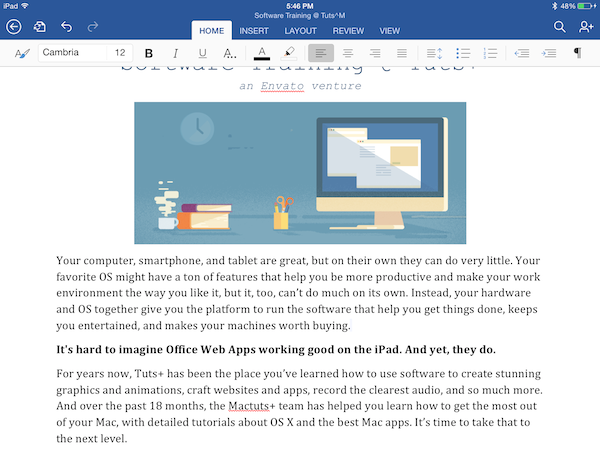
The new Microsoft Office apps for iPad are surprisingly nice and full-featured, but there’s one very major feature they’re missing: the ability to print. It’s easy to print from your iPad if you have an AirPrint-equipped Wifi printer, which includes most mid-priced printers sold in the past few years. Most productivity apps like the iWork suite include printing—but in Word, Excel, and PowerPoint for iPad, there’s no print button to be found. That’s a problem, especially for Word, if you’re using Office for iPad for real work and don’t have another Mac or PC to print from.
And yet, it’s not a problem at all—it’ll just take a couple extra steps. Here’s how you can print from any of the Office for iPad apps today, and as a bonus, how to export your Office documents in PDF format from your iPad or Office.com.
Just make your documents in Office on your iPad as normal, and save them to OneDrive. That’s the default place to save documents in the Office apps on iPad, and it’ll let you open them in the Office.com web apps. That’s important, because it has printing and a hidden PDF export tool, where the iPad apps don’t offer either for now.
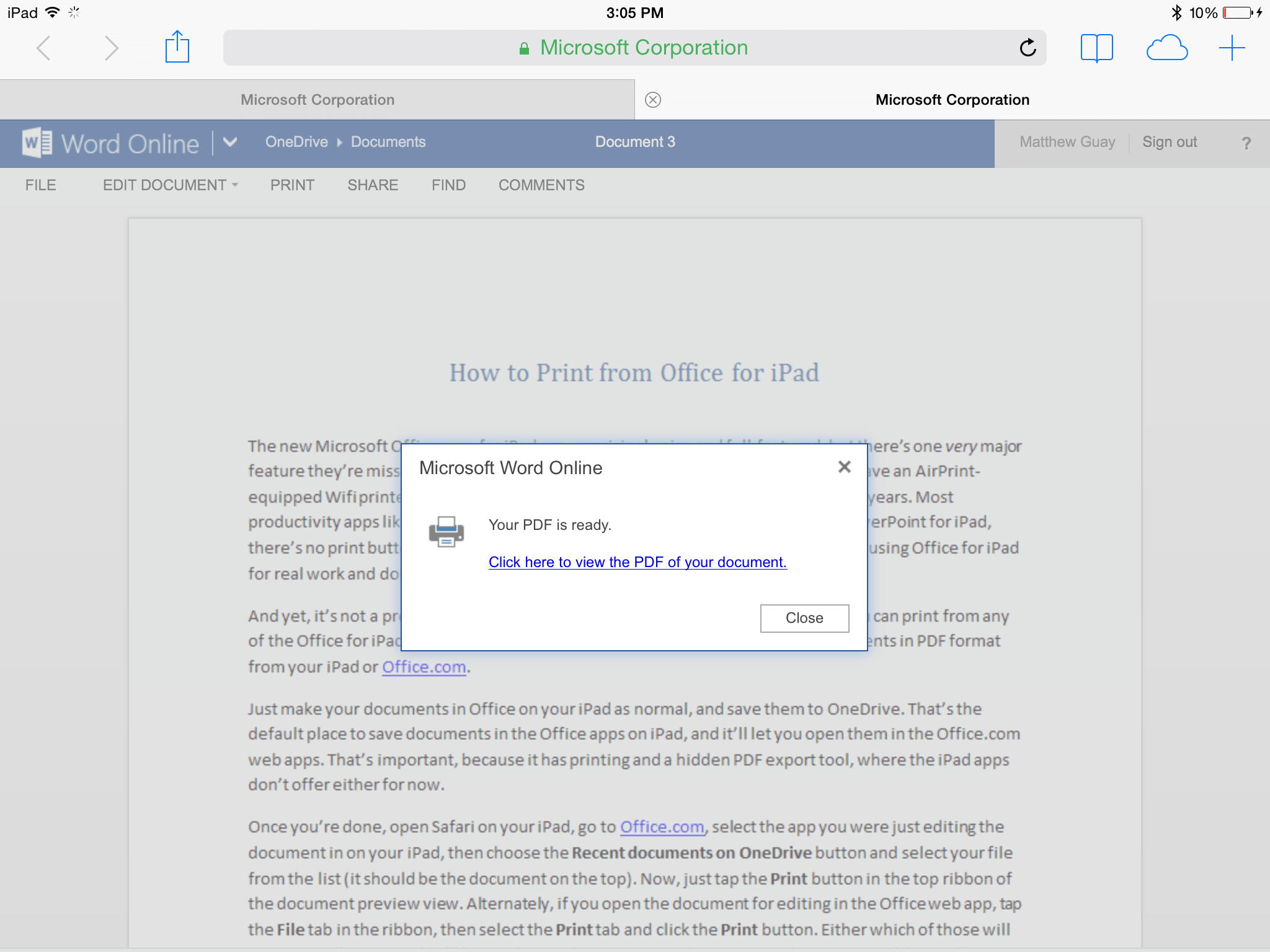
Once you’re done, open Safari on your iPad, go to Office.com, select the app you were just editing the document in on your iPad, then choose the Recent documents on OneDrive button and select your file from the list (it should be the document on the top). Now, just tap the Print button in the top ribbon of the document preview view. Alternately, if you open the document for editing in the Office web app, tap the File tab in the ribbon, then select the Print tab and click the Print button. Either which of those will open a small popover that’ll let you know it’s getting your document ready to print, and then will say Click here to view the PDF of your document.
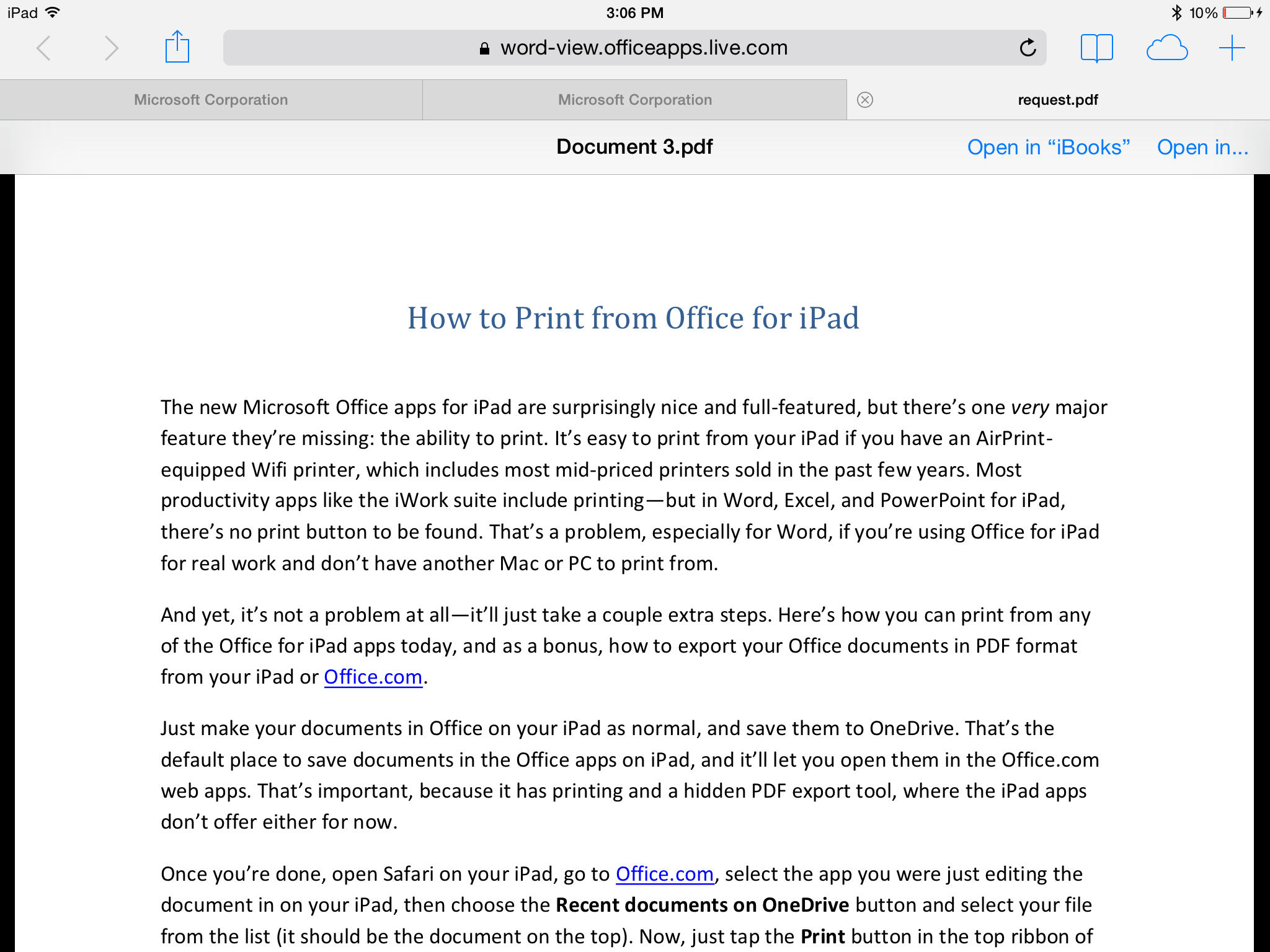
Click that link, and then you’ve got two options. If you wanted to print the PDF, just tap the share button in the top of Safari, select Print, and follow the directions to print as normal. Your document should look the exact same as it did in Word thanks to the fact that PDFs preserve all of your formatting and look the same everywhere. Then, if you actually wanted a PDF of your document in the first place, you can save it to your iPad or share it directly in any of your apps, just like you would with any other PDF.
I’d assume Microsoft will add printing support to the Office for iPad apps soon, but for now, that should be enough for you to get your documents printed from your iPad without needing a Mac or PC. And that’s pretty nice.
It’s a terrible day. Everyone’s making up fake news and bogus products, just to trick you, all because it’s the first day of April. You don’t know what’s true and what’s not, and are having to take the internet with a grain of salt instead of just blindly trusting it like usual.
And that’s sad. There’s no reason why April 1st can’t be another great day, a magical day even. The day all your dreams come true, or at least some of them, for real.
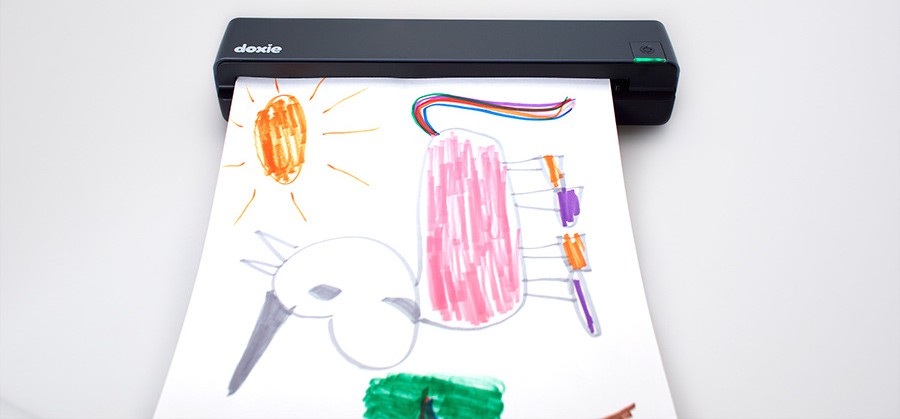
And so, thanks to the Doxie team, I’ve got a Doxie One to giveaway this April Fool’s day. The Doxie One is the new scanner you’ve heard so much about. You just turn it on, feed your documents into it, and it’ll save them as high-quality scans on an SD card. Scan every document you get, then just forget about it—you can quickly sync them to your Mac or PC any time (and send your scans to Evernote or OneNote directly), without having to worry about file names and other silliness every time you need to scan.
You know how you’ve taken so many more pictures ever since you got a smartphone? That’s what the Doxie will do to scanning. It makes it so easy, you’ll want to scan everything.
This April Fools’, you’ve got a chance to get a Doxie One for free. Here’s what you’ve got to do to get an entry in the giveaway:
Tweet about the giveaway, and include a link to this post and mention both Twitter accounts. Be creative, and say something funny—that may or may not help your chances.
Optionally for an extra chance to enter, signup for the Techinch Newsletter. It’s new, it’s exciting, and it’s your chance to get an extra shot at this beautiful new Doxie One.
Really, this isn’t a joke. So get your Tweet sent out, and subscribe to the newsletter, and this just might be the first April Fools’ day where the joke’s not on you.
Happy April Gifts day!
Contest open worldwide, and will end midnight GMT on Friday, April 4th, 2014.
Hell has indeed frozen over. Microsoft has finally made Office for iPad—the device that in one sheet of aluminum and glass sums up all of their fears about the future of computing. Until now, they’ve faced the challenge by pretending there was no competition. There’s iPads for fun, right along with iPods and Xboxes and everything else (well, maybe not the Xbox. It’s only for serious fun. But I digress), and then there’s PCs for Real Work™. That’s the thing Redmond is good at: work.
And yet, we’ve all worked on our iPads for the past 4 years just fine. Ok, maybe not just fine, but it’s been pretty swell. We've learned to work in new ways, found that lighter apps had enough power for most of our daily tasks, and learned that Office alternatives can actually be pretty nice. Perhaps it's taken a bit of adjustment, but the world has moved on from the productivity solutions we've relied on for the past two decades. The change has been nice, even. The troubles we’ve had in working on the iPad have been with multitasking and sharing files and such, not with Office. iWork has been fine for that, for the most part, and it even plays nicely with our Microsoft Office files. All’s fine in the world of work.
But it’s not fine for Redmond, because we’re not using Office. We’re working, but Office is an afterthought. And that’s a huge problem for a company where Office represents over 50% of their profits. The world leaving Windows behind is worrisome enough, but if they leave Office behind as well, Microsoft is dead.
*****
It's surprising today that Microsoft made Office for iPad. Yet, if anything, it should be most surprising that they only just made Office for iPad. The original Microsoft Office ran on the original Macintosh, long before there was a graphical version of Windows, much less Office for Windows. Sure, the Mac version of Office has always lagged behind its Windows counterpart, but it existed at least. It kept people using Office no matter which platform they were using. Even the online challenge of Google Docs was met with light versions of Office Web Apps, though they were hidden in SkyDrive and only recently rebranded as Office Online.
Yet, the iPad seemed too direct a challenge to Microsoft’s own platforms. Redmond had dismissed first the iPhone, and now its tablet counterpart was only deemed worthy of derision as a toy, even as the company worked feverishly to build touch versions of Windows. Making Office for iPad would grant it recognition in the business world as a real work device, and by extension make the Post PC world seem all the more real.
No one ever got fired for buying IBM, or so the saying goes in the IT world, and Microsoft nearly earned the same level of respect in business. The iPad and iPhone changed that. No one asked if they could roll out iOS devices—employees just started using them in real work, and they worked. Worked great. Worked so well, companies started rolling them out internally. Microsoft’s largest clients weren't asking if Office would run on the iPad, they just found the stuff that did work on the iPad, and ran with it.
At the same time, Microsoft was so intent on keeping the PC king, it didn’t even make touch-first copies of Office for its own touch-first OS, Windows 8. When Microsoft’s own apps didn't run in the new Modern UI on Windows 8, it's no surprise at all that 3rd party developers largely ignored it as well. Their stubbornness with Office and obsession with fighting the iPad without recognizing it as an equal competitor was killing it from all sides. Windows Phone didn't fare any better. Its bundled copy of Office Mobile includes so few features, its best use is as a marketing statement that screams “See, you need a PC to do real work.” Office was the one selling point Microsoft has consistently used to show that Windows devices are better, and yet they were the weakest point on their modern, touch devices.
In the meantime, the rest of the world was getting used to using the rather polished iWork apps even with their more limited features, and finding that Google Docs actually worked for their desktop office needs—or that their office needs weren't quite as complex as they'd originally thought. The lack of Office everywhere gave everyone a chance to sit back and reconsider if they really had to have Office or not. The answer came back as no far more often than Microsoft had ever dared to fear.
Had they continued their original mantra to have Office everywhere, most would have simply continued using it without considering the alternatives. Now, it'll take a lot to win everyone back. There's no option to simply make a light version of Office for iPad and call it a day—it has to be better than iWork, Google Docs, and everything else we’ve replaced Office with, or it'll get lost in the App Store along with countless other word processors and more.
Microsoft doesn't win today by sheer power of their name. They've got to compete with everyone else on equal footing. Word, Excel, and PowerPoint on iPad have to stand on their own merits.
*****
Word is the word processor of record, the app where everything from highschool essays to book drafts are expected to be created. Excel is the spreadsheet app that, for better or worse, defines spreadsheets. And PowerPoint is the presentations app who's very name is used as a generic word for presentations. To stand on their own, these apps each have to at least enough better than the existing alternatives to reclaim the name as the de facto standard apps for each of these categories on the iPad.
And, of all surprising things, they do. Word for iPad opened a 350 page book draft PDF in under half a minute, complete with sidebars, images, multi-column text on some sections, footers, and more. Scrolling through the document was silky-smooth, and searching for text was nearly as quick as you'd expect on a computer. Pages, with the same document on the same iPad 4, took several minutes attempting to open it before crashing. On a second attempt, it opened it, but with formatting errors and terribly slow scrolling.
That’s an extreme example, of course. Most of the documents most of us use on a daily basis aren't that long. But Word for iPad—despite its more limited feature set than Word on a Mac or PC—still includes tools to easily change your page size and margins, more advanced numbering and outline tools, multi-column and text box support, along with text wrapping around images and more. The ribbon is there, making it familiar, and yet it's slimmed down to fit nicely on the iPad's screen. There's even sharing and live co-editing tools to work on documents with others. Word for iPad is almost surprisingly polished; it's as smooth and slick as any other top-notch indie app on the iPad. It's every bit as nice as Pages for iPad, and then some—along with, apparently, a lot more power.
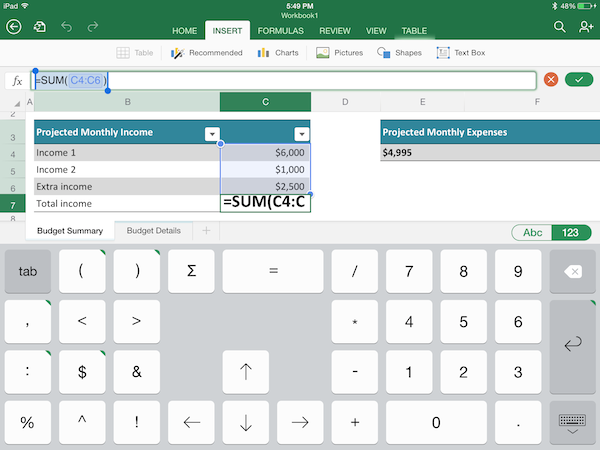
The same trend continues with Excel for iPad, which is more limited than Excel on a Mac or PC but far more powerful than Numbers for iPad. You can reference data in other sheets easily, add charts (even sparklines) in a tap, and enter data fast with a specialized numpad keyboard. You'll miss features like PivotTables from the PC, but then, you can at least view PivotTables in Excel for iPad and edit the underlying data, even if you can't create them yourself on the iPad just yet.
Keynote, iWork's counterpart to PowerPoint, has always been the more polished of the two, at least if you want slick animations. And yet, surprise of all surprises, PowerPoint for iPad packs in enough snazzy slide transitions that playback silky-smooth to make Keynote devotees pause. It's the weakest of the Office for iPad apps, in my opinion, with too few features to even cover all of Keynote's features (there's no object animation, for one), but it's at least not just a weak attempt to bring basic slideshow to the iPad. It's an actually useful presentations app that could be 100% useful on its own.
Perhaps that's the best thing of the full iPad Office suite. These aren't light apps that feel like they're only meant as companions to the PC suite. Just like iWork, they feel like they've been designed to be used productively 100% on their own—and at the same time, they're equally useful in tandem with their Mac, PC, and web app counterparts. In an even nicer extra that's a surprise bonus of being tied to Office 365 accounts, you can sign out of the Office apps and let others sign into their own accounts—the best option for sharing an iPad with someone else for productivity apps I've seen yet outside of Dropbox syncing (and that'd be a terrible pain to sign in and out of in every app).
*****
But then, there's the pricing. Office Online is perhaps the best deal Microsoft's ever offered: it's 100% free. Microsoft's Office apps for phones (iOS, Android, and Windows Phone) are all free, but they're also all terrible—seriously, even on Windows Phone, you can do more in WordPad on a PC than you can in Word on mobile. Then, on Macs and PCs, Office typically comes in a suite that retails for around $150+, depending on which apps you need. Or, more recently, you can subscribe to the whole suite via Office 365 for ~$9/month.
Full powered apps, full price. Lite apps, free.
Office for iPad decidedly falls on the former side of that equation—and thankfully so. As such, it costs, and the only way to buy it is with an Office 365 subscription. The apps themselves are free and individual in the App Store; you can download just Word, or just Excel, or all the apsp if you want. But just with that download, all you can do is view your files. To unlock editing, you'll need an Office 365 subscription, one you already have or one you purchase in the apps via a $99/year in-app purchase.
That essentially means Office for iPad costs $99/year, and that's getting a lot of attention. But then, that $99/year also lets you run Office on up to 5 Macs and PCs (and you can even share that subscription with others in your household or, ahem, quite possibly with friends), and gives you extra free OneDrive storage and 60 minutes/month of Skype calling. That's not so bad. And at any rate, if you actually need to use Office apps for work, paying a couple dollars more than a Netflix subscription isn't worth worrying about.
That is, unless you don't need Office. And here's the real dilemma: you can use Office Online—real Microsoft Office, albeit with fewer features than the iPad apps offer—for free in Safari on your iPad, and it actually works very well with touch. Or, you can use Apple's iWork, which again is polished and nice, with nearly as many features as Office for iPad—and it's free with a new iPad as well. There's Google Docs as well, though it has enough issues on mobile to not make it a solid contender here with those other great free choices.
Therein is Microsoft's challenge: making Office not just good, but great. So great, in fact, that we will want to use it, enough that it'll give us $9 worth of value in our work and lives each month beyond what we already get for free. Today's Office for iPad is good enough to directly take on the existing free alternates on the iPad, and then some. That's exciting enough. After Microsoft's feeble attempts to bring Office to phones, I'd all but written off Office for iPad long before it was released. No other 3rd party developer has even begun to compete directly with iWork for iPad, and I really didn't think Microsoft could pull that off either. And yet they did.
Now the challenge remains to fill out these apps feature-set and make them 100% competitive with Office on the Mac and PC. That would turn heads. We already have great Office apps that have basic features and are slick, and Office has amply taken those on. The interesting part of the challenge is the rest of the journey.
Will Microsoft have the courage to let Office for iPad compete directly with Office for PC? My $99 this year is betting they will.
Ever fired up a new app and immediately wondered what fonts its using in its UI? Mac apps by default use Lucida Grande, but that’s quickly changing. iOS 7’s focus on typography has Mac app developers experimenting with their own unique display fonts more than ever, and writing apps like Writer Pro often bundle their own editing fonts (and App Store don’t install their fonts system-wide as Microsoft Office or Creative Suite always has).
There’s no reason to guess what fonts an app is using, though. Here’s how you can quickly find out what fonts any app on a Mac is using.
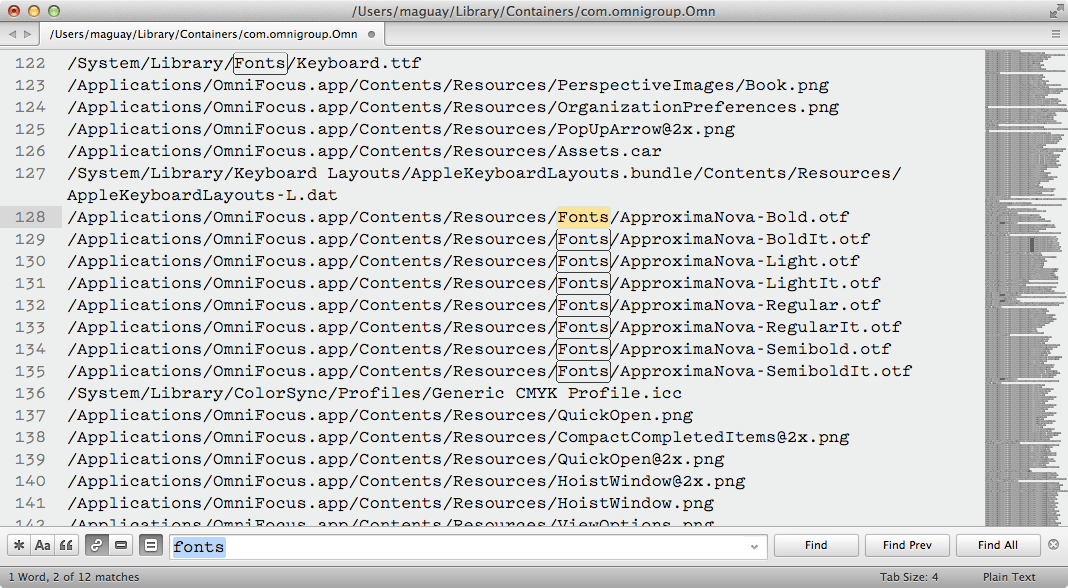
Just launch the app in question, then open Activity Monitor and double-click on the app you’re curious about. That’ll open the process info about that particular program. There, click the Open Files and Ports button, select all the text in that text box, and copy it.
Now, just open your favorite text editor (anything works here—TextEdit, Sublime Text, or even a word processor like Pages) and paste that text you just copied. You’ll just need to search through this text to find the open font files—which will include all fonts that app is using. Tap Cmd-F or open your app’s search menu manually, and search for font, .ttf, or .otf, and you’ll find every font in use and its location on your Mac. There will be more fonts than you might expect—you’ll almost always find Helvetica and Lucida Grande open for some reason, but with a tiny bit of looking around you’ll be able to find that mystery typeface. In this case, I was able to find that the new OmniFocus 2 for Mac is using a variant of Proxima Nova.
There’s one slightly easier method: you could just browse through the contents of the app and find any contained files. That’d work for App Store apps, assuming they’re bundling their own fonts and aren’t using any system fonts you don’t recognize. But, it won’t help you find fonts installed in another way, such as the font files from Creative Cloud’s Typekit font sync and other such sources.
Domain names are a strange thing. From the original simplicity of .com, .org, .net, and .gov have come so many top-level domains that it's all but impossible to keep up with them all. There's the country specific domains, of course, along with newer full-word domains including everything from .today to .guru.
It's a mess. But then, that's ok. Most people Google websites' names anyhow, and seldom type in the full address. And when they type in your site's address, they'll still assume it's a .com which is why I'll always recommend going for a .com domain whenever possible.
Except, I broke my rule. I just bought a .ch domain (Switzerland's country-specific TLD): techin.ch.
I've considered getting a short URL before, as every self-respecting geek has from time to time, especially when a short URL actually let you fit more into a tweet. That's not quite as important now that Twitter auto-shortens every URL with t.co. But, it's still cool to use unique TLDs to get a fun domain name, and when my friend Phillip Gruneich mentioned that techin.ch was available, and cost less than $15 to register, it was too good to pass up. I considered getting an even more fun URL, such as t”.co using international characters, but that'd be irritating to type at best (seeing as it has to be a closing curled quote, since straight quotes aren't allowed). So techin.ch it was.
What to do with a short URL
But what should one do with a short URL? Ideally, you'll use it to shorten links you're sharing online, and perhaps add it onto your file sharing tool. I use Droplr to share files, and it already lets you shorten links, so that'd seem like the ideal place to use my short URL.
Yet, the most common way to use short URLs is with Bitly, the de facto link shortener of choice today. It's great for shortening links, used by just about everyone from the NY Times to, yes, Envato, and integrates with almost every app. That helps with my ever-present worry about relying on web services that may go away—Bitly is rather unlikely to just disappear anytime soon with that many large companies relying on them, and it already offers an export tool for paid accounts so you can take your links with you. And then, most importantly for my use, Bitly integrates with IFTTT, so my auto-tweeted links can be shortened with my short URL.
And so, I hit a compromise: I'm using techin.ch directly with Bitly for shortening links, and the added the subdomain da.techin.ch with Droplr for sharing files. That's as simple as setting the A-records on Namecheap separately for the domain itself and for the subdomain. Then, on both Bitly and Droplr, I've set the short domain to redirect to Techinch.com.
That's not all you could do. I'm half-way considering using it for my email, but then again, telling people your email over the phone is difficult enough with any domain other than @gmail or something terribly recognizable.
But that's fine. The domain didn't need to do much. It gives me a little bit of custom branding, and made Bitly and Droplr nicer. And it's fun. That's quite enough for a string of 9 characters.
I still have a fear of link rot, that Bitly or Droplr could go away and my shortened URLs would point to nothing. But most things you share on social networks will only be seen now, and won't matter as much even a year from now. That especially is the case with the quick screenshots and such I'm sharing on Droplr. And I happen to think Bitly will stick around, at least as long as my short domain.
At any rate, now that I've got Twitter Cards and a short URL for Techinch, article links from here should look much nicer on my favorite social network. And that's fun.
It's finally published: my tutorial about how to make your own productivity system from OmniOutliner. I had a lot of fun making this tutorial—even though I managed to lose the entire tutorial and have to re-write it from scratch—and I happen to think you'll enjoy it. You just might get tempted to download an OmniOutliner trial if you've never used it before.
OneNote is one of the more unique notebook apps, with 5 levels of note organization and free-form note pages that let you add content wherever you want. That makes it powerful if you like to have your notes organized and want to organize info on your note pages however you'd like, but that same power also can make it very confusing to get start with.
Thus, my new tutorial on Tuts+. It'll take you through the features that are available in all the OneNote apps and show you how to put them to work for you. OneNote may not be perfect, but even Evernote has its issues, and I for one am hoping Microsoft will quickly iterate on the apps they've already released and bring them all to feature parity with the original PC version. But for now, here's what you need to get started.