You might have already noticed, but over the weekend Techinch.com got a little new update in the form of a new logo. It's not tons different from the old text-only logo. This time, though, it's got a bit of Metro styling to the text, and a ruler under inch, a change I've wanted to make for some time and finally was able to thanks to the design work of Jaume Estruch.
There's also new social network and favicons, all using a variant of T" as shorthand for the Techinch brand. I've thought of just using those two letters (or rather, one letter and one quote) as the logo, but am happy with the way the current name+ruler logo turned out.
I'm picky about my email apps. I've stubbornly clung to Sparrow on my Mac even though it's not supported now, waiting on the hope that something (.Mail, perhaps?) will come out that's a better replacement for it. But on iOS, it's the default Mail app that I've stuck to. I didn't buy Sparrow, which worked out, and the Gmail app — while nice — never really fit like a glove for me. And I found the whole waiting-in-line part of Mailbox to be foolish, and didn't even download it.
Because, you know what, Mail worked for me. Here's how I usually use email on the go on the iPhone: I check my mail, deleting everything that's unimportant and quickly replying to the stuff that's quick, and then leave everything else in the inbox so I'll deal with it when I'm at my Mac. It lets me achieve Inbox Zero simply, and lets me keep email from being overwhelming. Mail works for that.
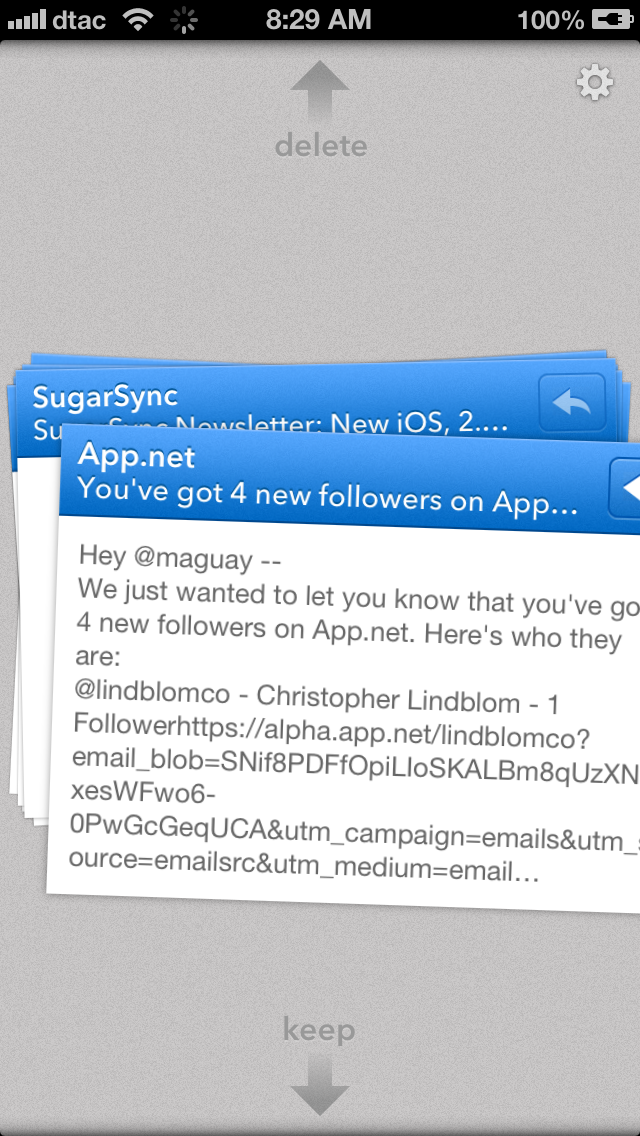
But there's a new app that works better: Triage. After hearing about it from Federico Viticci at MacStories, I knew I had to try it out, because for once, someone had made an app that perfectly fit my workflow and looked like it'd actually speed me up.
Here's how Triage works: you add your email account (Gmail, Yahoo!, iCloud, and IMAP accounts all welcome), and Triage will check for mail. It'll then show you a stack of little cards that show a preview of your email. You can likely know, based on that preview, whether you want to keep the email or delete/archive it. So, that's what Triage is designed for. You just swipe up to archive the email (or delete it — Triage archives by default, but you can switch that in the settings), or swipe down to keep the email unread in your inbox. Get through them all, and you'll have an empty Triage inbox — faux inbox zero, if you will, since there are still "unread" emails in your real inbox that you can deal with when you get to your computer or take time to sit down with Mail.app on your iOS device.
You can tap to see the full email, and you can reply or forward emails straight from the mini-card view or the full expanded view. Full HTML emails render perfectly, so no problem there at all. And the reply screen is delightfully minimal as well.
Fits Like a Glove
There's more, too. You can have multiple accounts - though unfortunately, you'll have to switch between them. I'd love to have a unified inbox of sorts in Triage, though it's not too frustrating to switch between accounts. You set the up-swipe setting per-account (which lets you either archive, mark email as read, or delete), which is nice, since I delete on my personal email and archive on my work accounts. Oh, and one other thing: deleted emails are marked as read, which is nice to see (and something some email apps I've used don't do unless you open the email first).
Now, hardly anyone could use Triage as their only email app; that's not what it's designed for. It's designed to help you clear out your inbox so you can focus on what's really important when you fire up your more powerful email app. There's no push notifications of new emails, and no Exchange ActiveSync support right now, so if you must have those, you'll need to stick with Mail.
For me, though, Triage fits like a glove. Its workflow perfectly fits the way I already used email on the go, and just makes it faster and — if anything — more fun. For $1.99 on the App Store, Triage for iPhone is an app I'd heartily recommend if you'd like a new way to clear out your inbox on your iPhone.
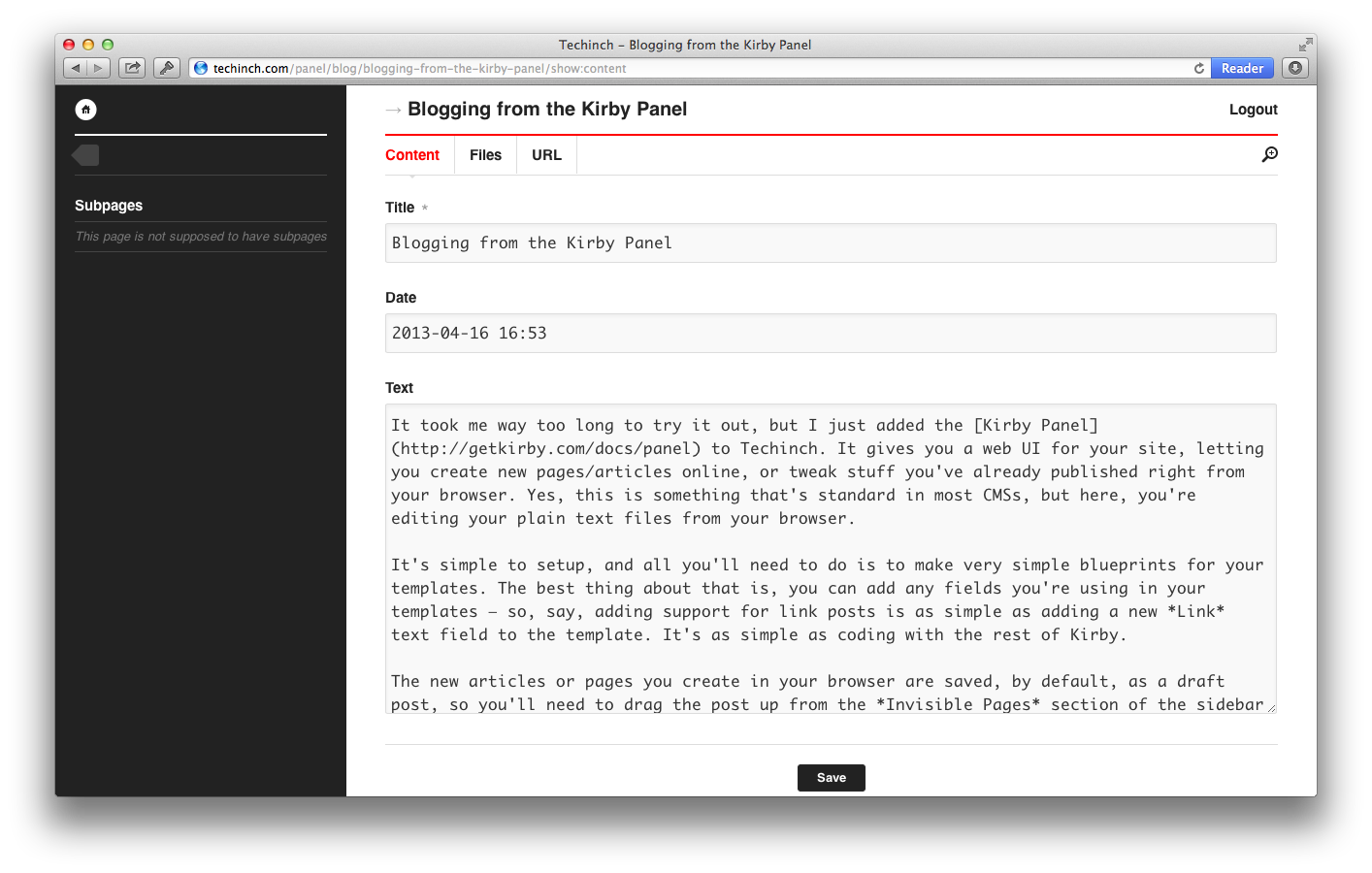
It took me way too long to try it out, but I just added the Kirby Panel to Techinch. It gives you a web UI for your site, letting you create new pages/articles online, or tweak stuff you've already published right from your browser. Yes, this is something that's standard in most CMSs, but here, you're editing your plain text files from your browser.
It's simple to setup, and all you'll need to do is to make very simple blueprints for your templates. The best thing about that is, you can add any fields you're using in your templates — so, say, adding support for link posts is as simple as adding a new Link text field to the template. Check out the Panel Blueprints documentation to see how simple they are to create; they'll likely only take you a couple minutes to put together. It's as simple as coding with the rest of Kirby.
There's a basic file uploader, too, so you can add pictures or other files to your posts. There's also a URL option that'll let you change the permalink — which also changes the folder name that your article's saved in.
The new articles or pages you create in your browser are saved, by default, as a draft post, so you'll need to drag the post up from the Invisible Pages section of the sidebar to the Pages or Visible Subpages section, depending on how your blog is setup. Kirby will automatically add the correct number to the folder to keep everything in order when it's added to the visible pages/subpages, too, just as you'd expect.
Now, my favorite thing about Kirby is that it's built on flat files, and I can quickly whip up an article from my favorite text editor (even quicker with my Kirby Alfred 2 workflow) with Markdown formatting and FTP it up to my site. But the panel is a nice extra, giving you a way to publish or edit from anywhere, right from your browser, and is a very nice option if you're building a site with Kirby for clients that might not be so excited about dealing with plain text files.
Oh, and the best thing? Kirby 2 is coming soon with a rewritten core to speed things up, new page filter methods, Exif data parsing, and more, in a totally free upgrade. It's also got a brand new panel coming that promises to be even more impressive. So there's no better time to build a great Kirby-powered site today, start using the panel, and then expect more great things from Kirby soon :)
I just published my Mac.AppStorm review of AeroFS, the new self-hosted file sync tool. It's cool, though extremely similar to Dropbox in most ways (its tutorial is an exact ripoff of Dropbox' tutorial). And, due to the way its designed, it doesn't let you access your files online, which might be a pro for some looking for more security, but it'd break the way I use Dropbox as an off-site backup and way to grab files from others' computers when needed. Team pricing would make it almost as expensive as Dropbox for teams, again without the web interface. No iOS apps makes it even more of a non-starter.
And that's sad. I'd like to see it be a stronger competitor to Dropbox, but instead it feels like a near-clone of Dropbox, stripped of some of its features. A clone that's sold on the promises of cheaper and more secure since your files aren't on Dropbox' servers, rather than unique and better features. Plus, 3% of my CPU when the app is idle is far too much for my taste.
Here's to hoping that it matures — and improves — from here.
"We end up with a diminished perception of reality because we’re more concerned about choosing a good Instagram filter for our meal than we are about how it tastes. We become Martian rovers, trundling around our environment, uploading data without the ability or desire to make any sense of it. Ultimately, we end up externalizing our entire lives."
I just wrapped up my review of the brand-new Ulysses III on Mac.AppStorm. It's awesome, and won my heart already. Really. Check out the full review at Mac.AppStorm for an in-depth walkthrough of its UI and how it works for real writing and publishing.
Now, it's a "heavier" app than the writing apps like iA Writer that I tend to prefer, but in this case, it's heavier in ways that make sense — like letting you quickly jump between documents in a set, add Markdown formatting with simple and obvious popovers, and beautiful PDF exports of groups of documents. It's my new app of choice for writing long articles, and I expect I'll put it to good use with my upcoming magazine as well.
It's just $19 this week, 50% off for its launch sale, so grab a copy of Ulysses while it's hot if you're a serious Markdown writer. It's the best Markdown plain-text editors have to offer, combined with serious document management and export tools.
"There is the desire of a consumer society to have no learning curves. This tends to result in very dumbed-down products that are easy to get started on, but are generally worthless and/or debilitating. We can contrast this with technologies that do have learning curves, but pay off well and allow users to become experts (for example, musical instruments, writing, bicycles, etc. and to a lesser extent automobiles)."
In a bit of a break from tradition, I thought it'd be fun to run an interview with a fellow tech writer here on Techinch. I've run numerous interviews with developers on AppStorm, but this is the first I've run on Techinch.
Jason Rehmus is a guy I've met — virtually — from my work with CoSupport a couple years back, and we've kept in touch via Twitter and App.net. He's recently launched a new online editing service, Sweating Commas, so I thought it'd be fun to interview him about his work, what his service offers, and his favorite apps and writing tips.
Enjoy!
Thanks for taking the time for this interview. Can you tell us a bit about yourself?
I'm a freelance writer and editor. I like shaping sentences and making paragraphs have greater impact, so partnering with other writers is a natural fit for me.
I'm also a road tripper. Most of the writing I do for myself revolves around the trips I take or hope to take. I've been on one long road trip so far this year, and I hope to add some more in the coming months.
Can you share any experiences or things you've learned from working with 37signals? I've been a fan of their apps for quite some time.
The best thing about going to work for 37signals, was the process of getting the job itself. It required I step well outside of my comfort zones, and it paid off big time for me. Sure, I landed the job, but the process of going after something I really wanted taught me so much about myself and what I'm capable of.
The other truly great thing about working there was getting the chance to meet Sarah Hatter. Sarah started her own company, CoSupport, providing top-notch customer support in the tech industry. I've been fortunate to be able to work with her over the last couple of years, and that's been a great experience for me, learning from someone as knowledgeable as Sarah. Seeing Sarah start CoSupport helped me see the possibilities in starting something of my own, which helped me in starting Sweating Commas.
From your experience in tech support, what's the best thing customers can do to get the support they need from companies?
The best thing customers can do is to be clear about what they need. They should ask their question as simply as possible, leaving out unnecessary information. Also, they really need to just ask one question at a time. More than one question at a time can cause confusion and slow down response times.
Tell us about your new venture, Sweating Commas. What was the inspiration for it, and how is it going so far?
Sweating Commas is an editing service designed for bloggers and content marketers. I provide that objective look that writers can't get on their own. They're too close to the work to see everything that could be improved. For bloggers that means they can publish with greater confidence. Content marketers save time by letting me handle the last step of their work while they move on to writing drafts of their new pieces.
It's great! My goal, aside from earning some money, was to get my name out there and to meet and work with new people. That's exactly what I've done. I've had some really cool opportunities come my way as a result of starting Sweating Commas. My clients work in a variety of industries I haven't worked in myself, so my work is much more interesting than it was before.
What's the most important writing tip you could give our readers, based on your editing experience at Sweating Commas?
Read your piece out loud as you're doing your final edit before publishing. If anything sounds like something you wouldn't say, change it immediately. Your voice is what sets you apart, so make sure the voice in your writing actually sounds like you.
What devices and apps do you use for your daily work?
My primary work machine is a MacBook Pro. I also write on my iPad Mini, and I'd like to do more editing on it, but I'm more efficient on the laptop. Touching the screen to place the cursor for making a correction requires more patience than I often have.
I tend to stick with stock apps like TextEdit, Mail, and Safari. I use Marked for reading through drafts while editing. I also rely heavily on Dropbox for my own documents and for receiving drafts from clients. Oh! And Hazel monitors my Dropbox folders and moves drafts around for me, doing the heavy lifting on some truly boring work. I like to keep things as simple as possible.
What's one app you'd love to see made that you don't have right now?
There isn't one. I adapt to the tools I have available to me. That's what makes me a horrible beta tester!
Thanks, Jason!
That's a wrap, but if you're a writer and need help getting your writing polished, be sure to check out Jason's Sweating Commas service. I'm still planning on giving it a shot for some upcoming top-secret writing projects I have going on :)
My favorite way to jot notes down these days is in Markdown formatted plain text files. I've got a folder of plain text files in Dropbox, and when I need to find something, I can quickly search Alfred for the file I need. It works quick, and is easy to use anywhere thanks to the fact that all of my notes are plain text files in Dropbox.
Using Alfred 2, creating these new notes is simple. I just type in the name of the note I want, and it makes a new note and opens in my default text editor — iA Writer. Thanks to a request from a reader on Mac.AppStorm, I've now tweaked it to add the name of the note to the top of the note as well. If, perhaps, you want the note to automatically include the contents of your clipboard — which would be a terribly simple way to turn anything into a plain text note — you can tweak the bash script in the Alfred workflow to include $(pbpaste) in the "echo" part of the script.
Yesterday, I saw a tweet from the Kirby account that got me rather excited: there was a new Alfred 2 workflow for creating Kirby posts. This workflow, created by developer Marc Jenkins, let you turn a quick Alfred query into a folder for your post (with a iterated number for that folder) and made a plain text article file in that folder with the basic structure for an article.
It was great, but I wanted more. So, I took some time, and added some features to the initial workflow. I first set it to open the article file automatically, and then tweaked the iterated folder number so it wouldn't count my /feed/ folder in the number. I also changed it to use dashes instead of spaces in the new article folder name, since that's how I usually save my articles. Finally, I had it add the query to the Title: link in the new post file. That made it perfectly fit into how I blog with Kirby.
Now, I can open Alfred, type "post A New Post", and it'll make a new folder "XXX-A-New-Post" with an article.md file in it that has the title "A New Post" and the current time, and that file will automatically open in my default writing app, iA Writer. Boom. That sure simplified blogging.
There's one extra thing I wanted, though. I also write link posts using Kirby's custom post types, and wanted an easy way to make those as well. With a few tweaks, I got it to make an article.link.md file when I start the Alfred query with "postli", and it automatically adds the Link to the post file from my clipboard using pbpaste. I figured I'd need to copy the link anyhow, so that works out good. Now, to make a link post, I just copy the link, open Alfred, type "postli A New Link Post Name", and I'm ready to write.
It's been a fun little adventure into bash scripting in Alfred, and I'm sure I'll be using this little workflow a ton. Go check out my tweaked Alfred 2 workflow for new Kirby posts on Github if you'd like to use it with your own Kirby blog.
And a special thanks to Marc Jenkins for making the original Alfred workflow; I wouldn't have gotten started without his first version!