Social networks can make your life easier. In the past, you had to individually email each of your friends, or perhaps print out 30 pictures to mail to them all. Now, one update and everyone know's what's important to you right now. Social networks can also make your life harder. Who wants to join and update the 35 trillion networks there are today?
So why do you use the networks you do? Likely, because there's a village. Facebook may not be the best possible social network, but with over 400 million members, likely almost everyone you know is already on it. Facebook must have been very quiet when it started, but now it's buzzing with activity from people you know.
Switching social networks is almost just a click away, but why switch if you get no value from the new service? If no one's there, then you'd be simply talking to yourself. Google Wave has this problem; it's only a quasi-network, but still has little to no value if no one you know uses it.
Email doesn't have this problem, and that's why Gmail could grow from no users before 2004 to being the 3rd most popular email service today. But email is decentralized; you can still email all of your old contacts from your new address. The only problem is getting people to switch their address books to your new email address.
Today Google unveiledtheir newnetwork - Google Buzz. It's built into Gmail, so it brings all of Gmail's users into Buzz automatically. So will Buzz automatically have a 37 million-member village, or will it still be starting from ground zero?
After all, to be successful, a network takes a village. No one wants to be talking to themselves.
Ok, when’s the last time someone told you to give your computer vitamins? We try to protect our computers from viruses with antivirus software, so what would giving your computer vitamins do? Well, antivirus (and antimalware) software protects your computer from digital harm and data theft, but vitamins might protect your computer and more from physical theft! Well, Vitamin D that is.
Vitamin D is an amazingly powerful home security program that was just released after a beta testing period. I recently reviewed several home surveillance programs, and came away exceedingly impressed with Vitamin D. This program lets you easily monitor your home with as many webcams as you’d like. All that video would be hard to process, though, so this is where Vitamin D’s power shines. It has sophisticated searching capabilities that let you identify motion at specific places in your video and be immediately notified via email when motion is detected. Then, if you want to review your video, you can see those instances and can even add new criteria to monitor. It will then immediately rescan your video and show you the motion from the new area you selected. I tested this in the Beta version, and it worked great! This is only a sampling of Vitamin D’s features, so check out their feature list for more information.
The best part is the price. Vitamin D is available as a free Starter edition for 1 webcam and QVGA video, or you can purchase a Basic edition ($49) for 2 cameras and up to VGA resolution or a Pro edition ($199) for an unlimited number of cameras. This makes it accessible to everyone, and you can easily choose the level of power you need. So if you’d like to make your home more secure with hardware you already have, check out Vitamin D … you might find that vitamins make your computer better, too!
I recently purchased a Samsung N150 Netbookso I could do college and work on the road easier. Desktops aren’t very portable, and smartphones aren’t enough for everything (think 1000 word essays or blog posts), so a netbook seemed like a great way to fill the gap. I plan to review the netbook soon, but wanted first to put down my initial impressions of Windows 7 Starter.
I have been running Windows 7 as my main OS since the beta release over a year ago, and upgraded to the release candidate and then the final version as soon as they were released. During the beta and RC I was (obviously) using Windows 7 Ultimate, but then purchased 7 Professional as soon as it was publically available (thanks to the Win741 student offer!). There has been a lot of discussion about the features (or the lack thereof) in Windows 7 Starter, but until now I hadn’t experienced them firsthand. Here’s my impression of Windows 7 Starter after a day of use:
This article has some great tips on converting your existing printer into a wireless printer, as well as advice on whether it makes more sense to simply invest in a new wireless printer.
One other exciting wireless print server I discovered through my research (but was not included in the published article) was the ASUS RT-N13U. This is both a wireless print server and 802.11 n router for less than the price of any one of these devices from many other companies. I've never tried it out, but at least on paper it looks very interesting and I'd be very tempted to try it if I didn't already have a n router. So check out the article, and if none of the other devices catch your imagination, come back and check the ASUS RT-N13U!
Microsoft recently released a new PowerPoint add-in, Mouse Mischief, that lets whole classrooms easily share one computer using their own mice (up to 25 mice may be used at once!)! I recently reviewed this at Digital Inspiration, so check out my article for more information:
Interestingly enough, Mouse Mischief was tested in schools in Thailand. This video shows it in use in Thailand, and in fact, it's at a school I've been to before! It's a small world! :D
If you use your computer regularly, chances are you’ll need to create screenshots. Screenshot tools are a regular part of my daily workflow since I write technology articles. I mainly use them to demonstrate programs and settings, but screenshots are also a great way to show or save what you see on your screen right now. Whether you’ve uncovered a bug in a program or want to keep a record of a recent online purchase, screenshots are the best and often only way to record this information.
There are many excellent screenshot tools available today. In fact, you likely already have a couple ready for use on your computer, including the built in Print Screen feature in Windows. Here is a roundup the most useful screenshot tools, ranging from free to paid offerings. Your favorite tool will depend on your needs, and you may even end up using more than one. Keep reading to check them out, and let us know what your favorite screenshot tool is!
WordPress is the software that powers this and millions of other blogs and websites today. It makes setting up and running a blog simple and quick, and is highly extendable through a wealth of plugins and themes. WordPress 2.9 was released in December, and discussion has already been started about the features and development of WordPress 3.0 which is due this year. One of the most exciting discussions about the 3.0 release, in my opinion, is the plan to introduce a new default theme. The famous blue and white Kubrick theme has been the default theme in WordPress since 2005, and powers many blogs even today.
Today, the new WordPress Foundation was launched, and it is powered by the development version of WordPress 3.0 and … the new 2010 theme! It is exciting to see a preview of the theme in the wild! The theme is monochrome unlike the bright blue Kubrick, but appears to be more malleable and configurable the former default theme. It is clean and gives full attention to the body text, and looks fairly similar to the many framework themes that have become popular in recent years. So if you want a glimpse of the next default theme, head over to http://wordpressfoundation.org/. And while you’re there, check out the opensource projects under the WordPress umbrella, and subscribe to their blog to keep up with the future of WordPress.
Now I can’t wait to see WordPress 3.0 and the 2010 theme released to the public!
eBooks are the latest buzz in the tech industry. From Amazon’s Kindle to the tablet that Apple is expected to unveil next week, it seems like the 2010’s will do for books what the 2000’s did for music with mp3s. eBooks are hardly a new phenomenon however. Microsoft has been releasing books in a variety of digital formats for many years. Best of all, they regularly offer select ones for free download. Techinch recently featured several of these books, and today Microsoft Press announced one new free eBook and mentioned another they have offered for several months:
Have you ever wanted to make a quick webpage? Not a full site, but simply a page with information, some pictures and perhaps a map or video? Backpack from 37signals is a great tool for keeping track of your personal and business information, but it can also be used to quickly make a public or private site. In fact, the “Unofficial List of Backpack Tips and Tricks” is simply a public Backpack page!
To get started, first sign into your Backpack account. If you don’t have an account yet, signup at backpackit.com. They offer a variety of accounts ranging to a free account with 5 pages to monthly accounts with more pages and features starting at $7/month.
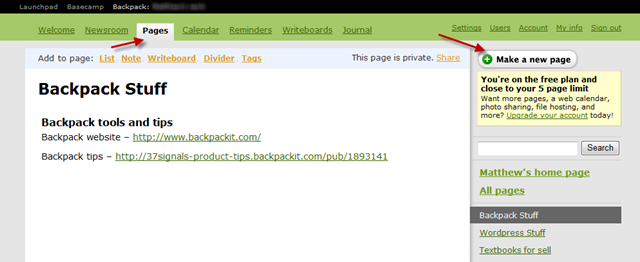
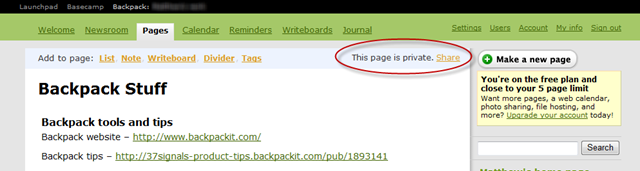
Once your signed in, you need to create the select the “Pages” tab and then click the “Add a new page” button on the right.
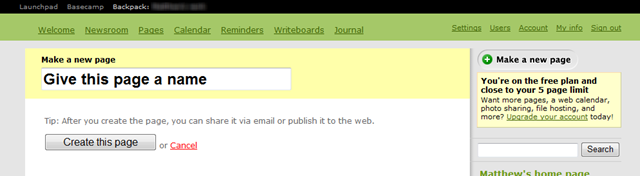
Now name your page, and click “Create Page.”
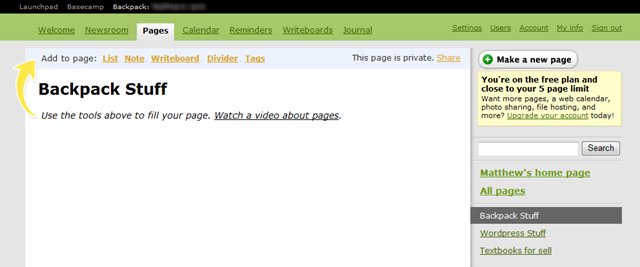
Your fresh page is ready and waiting for you to add content. Simply select any of the links at the top of the page to turn this into the website you need.
You can add lists, notes, dividers, tags, and more to your page. Although Backpack offers few editing tools, you can easily make your content in your notes appear just the way you want it with Textile codes (for a reference of Textile markup, see http://redcloth.org/hobix.com/textile/quick.html). For example, putting asterisks around text ( *like this* ) makes the text bold ( like this ).
Backpack pages can contain a wide variety of content, including images, files, maps, videos, and more. Images and files can only be inserted into pages with a premium account. Many other things, including maps and videos, can be simply inserted with their shortcodes in a note. The Unofficial List of Backpack Tips and Tricks has detailed directions for adding these and more to a Backpack page, so be sure to check it out.
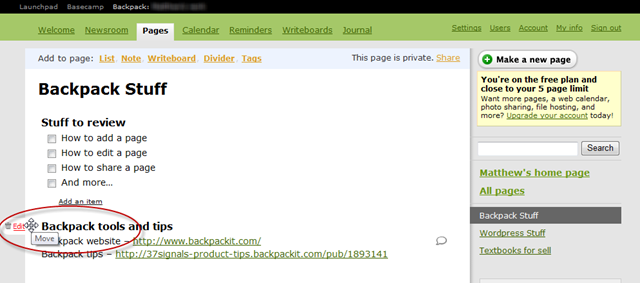
One of the great things about Backpack is how easy it is to edit anything in your page. Simply hover over the content and a handle will appear. From that, you can delete or edit the content, or can drag the content to any part of the page.
Public Backpack pages are slightly different than your standard Backpack pages, so you may need to adjust what you add based on that. In your own account, lists appear as check-off items that you can check to complete. These will simply show up as a bulleted list in your public page. Also, Writeboards will not be visible in your public page, so only add them if they’re for your own use.
Once you’ve got everything you want in your page, it’s time to share your new webpage with anyone you want. Click on the “Share” link at the top of your page.
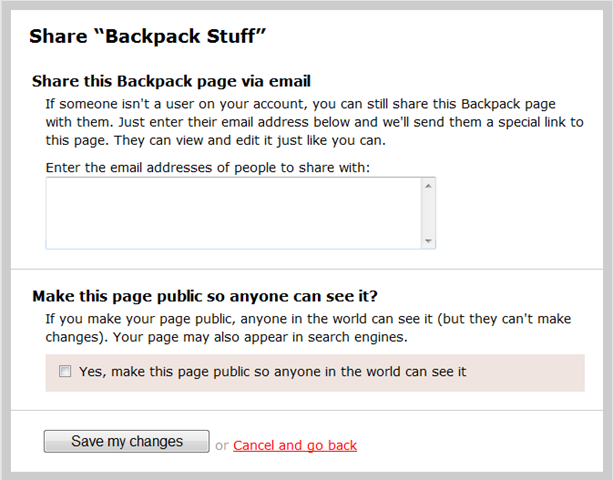
You can now choose if you want to share the webpage with everyone, or just certain individuals. To make it fully public, check the box at the bottom of the page. You will be given a public URL that you can share with others. Visitors to this public page can see the content, but will not be able to edit it. Do note that shared Backpack pages have random addresses, so if you’d like an easier address to share you could shorten it at a popular URL shortener such as Bit.ly.
If you’d like to share the page with only certain people, enter the email addresses of the people you want to share your page with. They will receive an email with a link to your page, and can sign in by simply entering their email address. When your pages are privately shared, those you share it with can actually edit the content on that page, which makes it great for group projects.
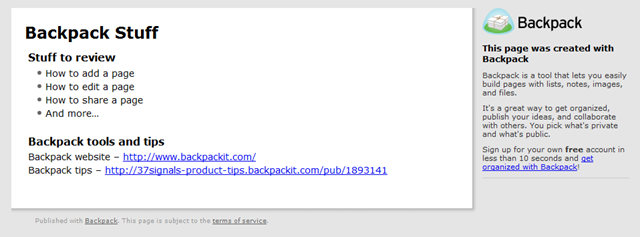
Now, others can easily access your page online. Your shared page will look similar to your original page, without the extra options of a full Backpack. Here is our example page shared:
This is a great way to easily publish a simple webpage, and once you have your Backpack account, you can create pages in minutes. So what do you need to publish today? Let us know how you’ve used this tip, or other easy ways to quickly publish online.
Although Windows Phones have been around for many years, the apps built around the platform often feel dated. Additionally, they are often much more expensive than their counterparts on other platforms such as the iPhone. There are notable exceptions to this, however, and the new Windows Marketplace for Mobile offers some exciting new apps.
This past week I came across a new exciting app on the Windows Marketplace thanks to their Twitter feed – a native Google Reader app! Google Reader is great for keeping up with news from your favorite sites and blogs, and many popular feed readers, such as the excellent FeedDemon, automatically sync your read feeds with it. This makes it very easy to keep up with what you’ve read whether you’re at your own computer or an internet-connected computer anywhere in the world.
Speeed Reader (yes, with 3 e's ... that's not a typo!) now brings this power to Windows Phones in style. Although you can access Google Reader through your mobile browser, Speed Reader gives you a much nicer interface in which to read your feeds. Once you install this app, simply sign in with your Google Reader account and your feeds will automatically synchronize. All of your feeds will be easily viewable, and can additionally be cached for offline viewing. This is my favorite feature, as I can sync my feeds when I’m in a WiFi hotspot and then read them anytime later. When you sync again, Speeed Reader will refresh your read feeds on Google Reader so your feeds will be in sync everywhere.

 so I could do college and work on the road easier. Desktops aren’t very portable, and smartphones aren’t enough for everything (think 1000 word essays or blog posts), so a netbook seemed like a great way to fill the gap. I plan to review the netbook soon, but wanted first to put down my initial impressions of Windows 7 Starter.