Have you ever wondered which fonts are included with Adobe Photoshop? I’ve recently been comparing Photoshop CS4, CS5, and Elements 8 with trial versions installed in XP on VMware Workstation. This actually works very good for looking over the feature differences between each edition. One thing I was especially curious about was which fonts Adobe included in each product. I searched the internet and Adobe’s site, but couldn’t find anywhere that listed the fonts that were included with these products. Microsoft regularly lists the fonts they included with different editions of Windows and Office online, but I could find no such list from Adobe. So here it is … the list of new fonts added to my virtual machine after installing the trial versions of Photoshop CS4, CS5, and Elements 8. Each of the fonts are linked to that font’s page on Adobe’s website, though I couldn’t find links for several of the fonts.
Update: I now also added the fonts included with Adobe Premiere Elements 8, since this is commonly purchased with Photoshop Elements 8 in the Adobe Photoshop & Premiere Elements 8 Bundle. And, interestingly enough, it adds almost all of the fonts included with the full versions of Photoshop, so you’ll be missing out on even less fonts. Actually, it even includes 2 fonts, Courier Std and Premiere, that aren’t included in the CS editions of Photoshop. Nice :)
Photoshop CS5 includes 3 fonts not included with Photoshop CS4, but it is also missing 3 fonts that were included with Photoshop CS4!
Although Photoshop Elements 8 includes far fewer fonts than its professional brothers, it includes the Myriad Web Pro font set in addition to the standard Myriad Pro, while the CS versions only include Myriad Pro itself
The CS versions of Photoshop both installed all of their fonts in the standard font folder:
C:\Windows\Fonts
However, Photoshop and Premiere Elements 8 installed all of the fonts except for Myriad Web Pro in a special Adobe folder:
C:\Program Files\Common Files\Adobe\Fonts
So, if you have Photoshop Elements and want to use your Adobe fonts in other applications such as Microsoft Word, copy them from this folder to the Windows\Fonts folder.
Conclusion
I first encountered Adobe’s Minion Pro and Myriad Pro fonts on Adobe.com’s Buzzword, and was disappointed to find that I didn’t have these fonts when I tried to open a document saved with these fonts in Word on my desktop. So it’s exciting to see these fonts included with all editions of Photoshop, including the cheaper Elements editions. But I was disappointed to find that none of these include the popular Helvetica font, since it isn’t included in Windows, either.
And one other thing … if you want any of the fonts included in Elements, you’re likely going to come out cheaper by buying it than by buying the fonts individually, since each font individually usually costs $30 or more! Plus, if you buy the Adobe Photoshop & Premiere Elements 8 Bundle, you’ll end up with almost all the fonts from Photoshop CS plus a couple extras. :)
Regular readers know I’m a fan of ebooks, and have recently written several posts about reading ebooks on your computer. I’m also a fan of desktop virtualization, and have published numerous articles here and at How-to Geek about Virtual PC, VMware, VirtualBox, and the (in my words) Desktop Virtualization Wars. So, when I was recently contacted by a representative of Packt Publishing about reviewing a book they’ve recently published on VirtualBox, I thought it’d be an interesting opportunity to try something new – reviewing an ebook.
First off, VirtualBox 3.1 Beginner’s Guide, the book I will be reviewing, is available both as a print book and an ebook. Packt Publishing always published their books both in paper form and as a DRM-free PDF, which is very nice. This book is aimed at helping users who are new at desktop virtualization get up to speed quickly with step-by-step tutorials on using VirtualBox. The book’s style is similar to the For Dummies books, so if you enjoy those type of books you may find this book both enjoyable and helpful. You won’t learn how to manage enterprise virtualization from this book, but for those who are starting out, it may be a great help.
I’ll be reading this book over the next couple weeks before I write an actual review, but I’d also like your help. What would you like to find out about this book? Do you have any questions I could help answer in the review? Check out the free preview chapter of the book at this link, and then sound off in the comments about what you’d like to see in the review. Hopefully this will be the first of many tech ebook reviews here at Techinch, so please give your feedback and we’ll see where this goes together!
Kindle for PC is one of my favorite new programs for Windows, and a recent update made it even better. The Kindle Store offers more new ebooks than most other ebook stores, and the terms usually allow you to keep books on up to 5 computers and devices. I use my netbook as an ebook reader, and with all the ebook programs I’ve tried I still prefer the Kindle app. Here’s what the newest update brings to Kindle for PC
Getting the Update
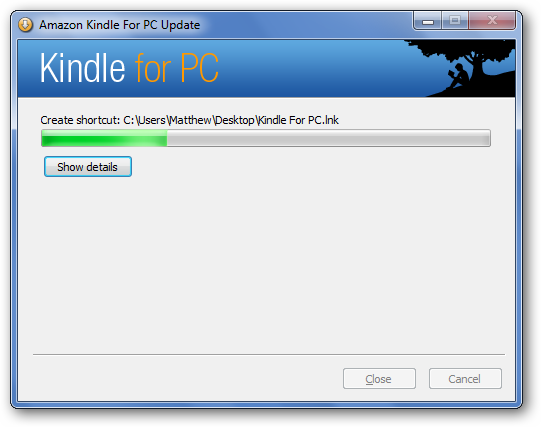
Kindle by default automatically downloads updates and installs them, so you’ll usually have the latest version of Kindle for PC installed. Kindle for PC was released as a beta shortly after Windows 7’s launch last fall, so if you installed it when it first came out you may still be running the older version. Just open Kindle for PC while you’re connected to the internet, though, and the latest version should automatically download. Next time you open Kindle, it will automatically install the update without requiring you to click or select anything.
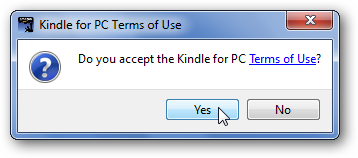
After the update installs, you’ll be asked to accept the license agreement.
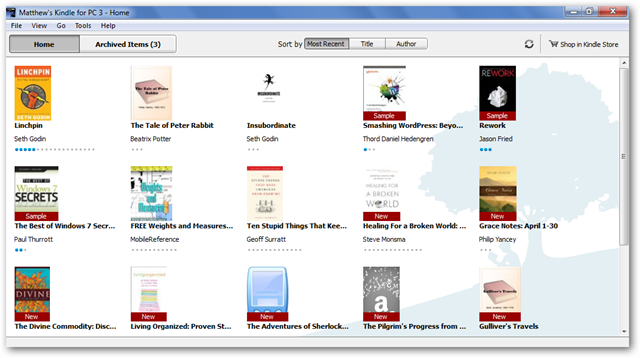
Welcome to your updated Kindle for PC! Notice the changes?
Changes in Kindle for PC 1.1.0
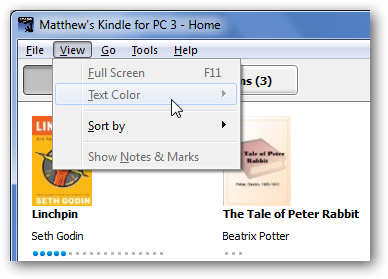
The latest version of Kindle for PC has several changes, so let’s explore them quickly. Most noticeable is the old-style File menu at the top of the window. This is an unfortunate design decision; previously Kindle had a consolidated menu on the right of the top toolbar similar to IE8. Hopefully they’ll adopt a more modern UI instead of the File menu with future versions, but one thing we can be excited about is that they expanded the menu to contain more features. On the front screen, most of the menu items are grayed out since they’re book-related features (another reason why modern, context-centric menus would be nicer … but I digress).
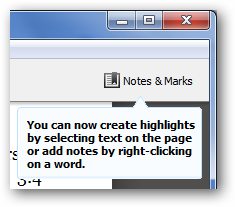
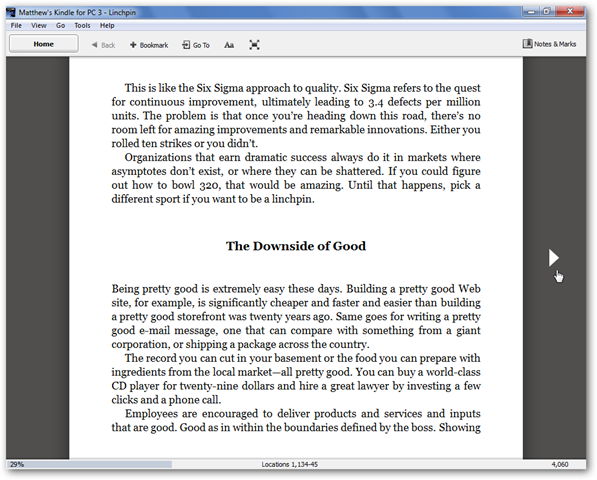
So let’s dive into a book to see the new features. Here I’ve opened Linchpin by Seth Godin, the latest ebook I’ve been reading (very good reading/ideas, by the way!). First off, Kindle tells us that we can now add notes and highlights directly from Kindle for PC! This is the biggest features Kindle for PC was missing up till now, so it is a very nice addition.
To make a note or highlight text, just select the text and a context menu automatically pops up. Choose the option you want.
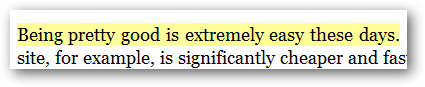
Highlighting looks just like you would expect (though maybe they should make the highlight less straight to look more like my real-world highlighting!).
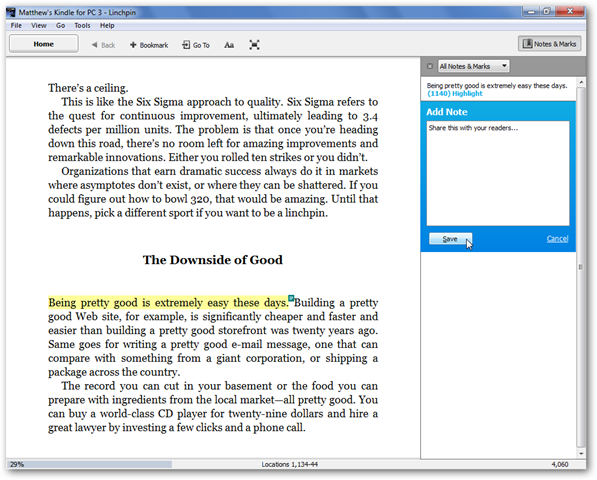
If you choose to add a note, the Notes & Marks sidebar will open so you can enter anything you want. Click Save when you are finished. Remember, Kindle will sync these notes and highlights to all of your computers or devices via WhisperSync, which is very handy!
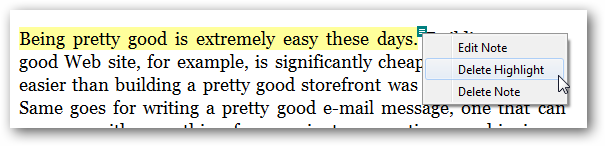
If you decide you don’t want the highlight, right-click on it and select Delete.
Nice UI Enhancements
Another nice new change is the darker background color and shadow behind the ebook. This is mostly a cosmetic change, but one I found very nice.
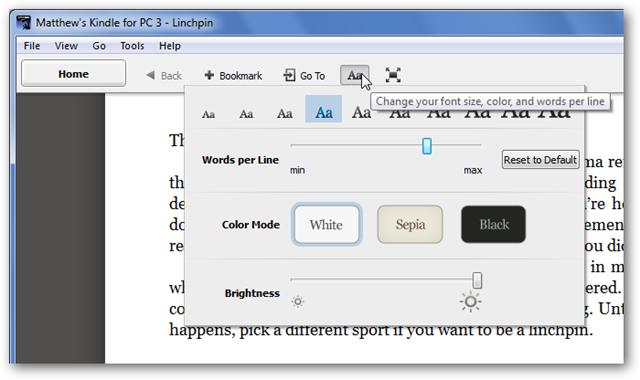
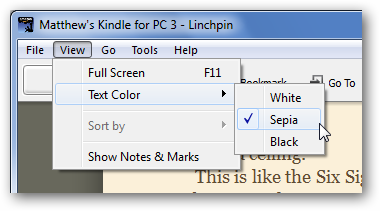
But for even more options, click the “Aa” button. This button used to only change the font size, but now it contains a variety of options.
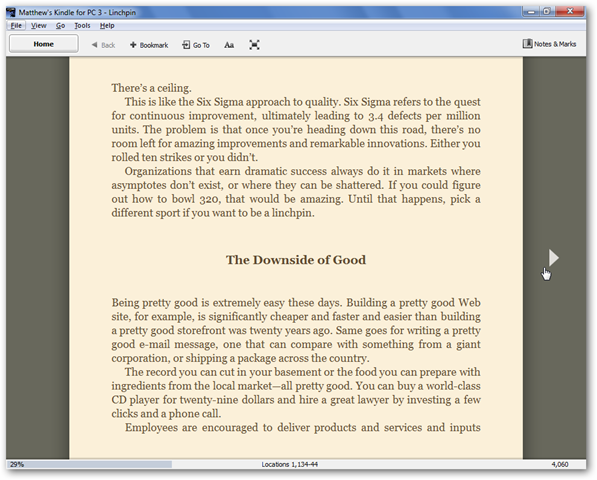
You can choose the font size, number of words per line, color mode, and brightness. All changes can be previewed by simply hovering over the option, which is very nice. The new color modes are especially nice. The Sepia options looks more like real paper, while the Black option gives you White text on a Black background which many prefer for on-screen reading. Here’s our book with the Sepia color mode … very nice.
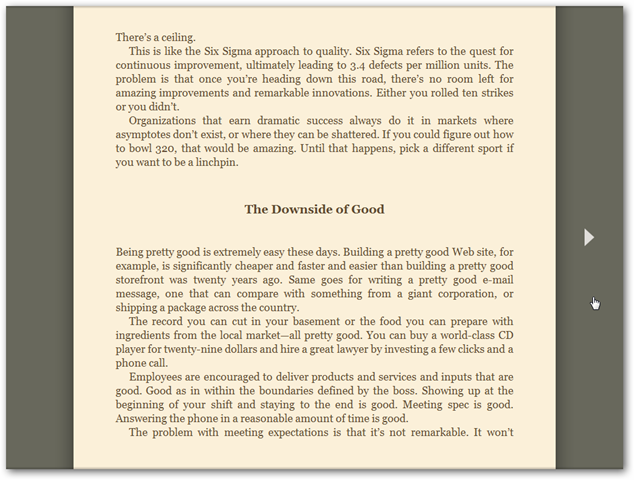
And, right beside the Aa button is the newest button … which activates full screen mode! You can also activate full-screen mode by pressing F11 on your keyboard, which is the universal “full-screen mode” shortcut. Nice!
Now your PC really feels like a Kindle! Press Esc on your keyboard to exit full-screen mode when you’re done reading.
The file menu offers the same options that we’ve used with the standard buttons, so it seems to be there just to help those who prefer file menus. I hope they remove the file menu in a future update, but I’m one user that really wants File menus to die :)
Conclusion
That’s all the changes I noticed; if you notice any more, be sure to let us know in the comments. As is, though, Kindle for PC is my favorite ebook reader for PCs, and I highly recommend it. These changes only made it nicer, and I can’t wait to see what other features Amazon brings to Kindle for PC over time!
I’ve been writing up a storm, but unfortunately it hasn’t brought any rain to my town Tak, Thailand. We’ve had average daily temperatures of 110F, so consider all of these articles well-roasted!
Tired of the standard Media Player look and feel, and want something new and innovative? Zune for Windows offers a fresh, new way to enjoy your music, videos, pictures, and podcasts, whether or not you own a Zune device.
Taskbar thumbnail previews are incredibly useful in Windows 7, but for some users they may be too small. Here’s a tool to help you make your taskbar thumbnail previews just like you want them.
Quality OCR software can often be very expensive, but you may have one already installed on your computer that you didn’t know about. Here’s how you can use OneNote to OCR anything on your computer.
Want to breathe new life into your netbook? Here’s a quick look at Jolicloud, a unique new Linux based OS that lets you use your netbook in a whole new way.
Want to easily convert area, volume, temperature, and many other units? With the Calculator in Windows 7, it’s easy to convert most any unit into another.
Are you frustrated by always having to change the font size before you create a document it Word? Here’s how you can end that frustration and set your favorite default font size for once and for all!
Would you like more features and flash in Windows on your netbook? Here’s how you can easily upgrade your netbook to Windows 7 Home Premium the easy way.
This works great, by the way,…
And my Samsung N150 runs Aero great; oddly, it gets a better Experience Index on the Video Card than the processor!
Pidgin is definitely our favorite universal chat client, but adding all of your chat accounts to multiple computers can be frustrating. Here’s how you can easily transfer your Pidgin settings to other computers and keep them in sync using Dropbox.
Want to make Adobe Reader a better ebook reader? There are a wide variety of ebooks available in PDF format, including the free Microsoft Press ebooks I mention regularly here, and Adobe Reader is the de facto standard PDF reader. In general, Adobe Reader works great for reading PDF ebooks, but here are a few tips to help make it an even better ebook reader.
Keep Reading Where You Left Off
Have you ever read several chapters of a PDF ebook, only to have to find your place again the next day when you continued reading? This can be very frustrating, but thankfully there’s a way to make Adobe Reader remember where you were last reading.
Open the Edit menu, and select Preferences. Select the Documents category on the left side, and then check the first box that says “Restore last view settings when reopening documents”. Press Ok, and now Adobe Reader will always remember where you left off reading when you close a PDF.
Remove Distractions
Taking Adobe Reader full-screen might be the best thing you can do if you’re trying to concentrate and read a full ebook. In many programs, including most web browsers, pressing F11 makes the program go full-screen, but F11 does nothing in Adobe Reader. Instead, to make Adobe Reader go full-screen:
Open the View menu, and select “Full Screen Mode”, or
Press Ctrl + L on your keyboard
This will take Adobe Reader from this:
to this:
Now, on a widescreen, that still is not the optimal way to read an ebook. Zoom in by holding the Ctrl button down on your keyboard while scrolling up on your mouse, or by pressing Ctrl and + on your keyboard. My netbook has a multitouch touchpad, and if you’re using one you can simply pinch or spread your fingers to zoom. Now doesn’t it look inviting to read?
To continue reading, click your left mouse button or press the space bar to go down a page down, or your right button to go a page up. You can do the same with the Page up and Page down buttons, but often I find pressing the space bar to scroll a page down works the nicest. When your finished reading, press Esc on your keyboard to return Adobe Reader to its normal size.
If you’d rather just maximize your reading space in Adobe Reader while keeping it in windowed mode, then use Adobe Reader’s Reading Mode. To activate Reading mode:
Open the View menu, and select “Reading Mode”, or
Press Ctrl+H on your keyboard.
Here’s how the same PDF looks in Reading Mode:
Rotate your Widescreen to view more text at once
This tip is mostly useful for netbooks, but you may find it useful on a desktop if you can easily rotate your screen. I use my netbook as an ereader a lot, and strangely, it feels very nice to hold it sideways almost like a book. Of course, to read like that you need to rotate your screen. But I’m not using my full computer this way; I only flip it to read ebooks. Adobe Reader’s ability to rotate PDFs is very useful for this. To rotate your PDF:
Open the View menu, select “Rotate View”, and then choose Clockwise or Counterclockwise,
Press Shift+Ctrl+Plus or Shift+Ctrl+Minus, or
On a multitouch touchpad, twist with your fingers to rotate.
It doesn’t make too much sense to use Adobe Reader rotated in windowed mode, so I usually both rotate the document and view in full-screen. See how much we can see on the screen at once now?
Conclusion
While these may not be groundbreaking features, the are some that have made ebooks much nicer to read for me. I hope you find them useful, and feel free to share your favorite ebook tips and tricks in the comments!
Oh, and by the way … The ebook I used in this example is the free ebook Unleashing the Ideavirus from Seth Godin … great ebook, by the way!
Multitasking is, odd as it seems, one of the largest debates in the tech industry in 2010. Apple’s new iPad, along with the iPhone and iPod Touch, do not support multitasking except for some select bundled apps. On a phone, this is much less of a limitation, but with the iPad being considered as a computer/laptop/netbook replacement, multitasking is much more of a concern.
Multitasking has been dismissed as a power-user feature that regular consumers would seldom need, but consider my situation today. I’m typing up homework (in Word 2010) from my college website (in Chrome). To do my homework, I’m referring to my textbook ebook (a PDF file open in Adobe Reader) and have needed to look up references online (again, in Chrome). I’ve also got Media Player running in the background shuffling Classical music. Then, to write this post, I fired up Windows Live Writer while everything else was still running. By anyone’s definition, this is multitasking, but is it such an odd scenario? Wouldn’t this be something many students would need to do on a daily basis?
I’m doing all of this on my netbook, which is running Windows 7 Starter with 1Gb of ram and an Atom N450 processor; it cost about 2/3 of an iPad’s entry level price. The performance is perfectly acceptable for all of this. Yet on an iPad, I wouldn’t be able to efficiently do my homework in this way. In fact, the easiest way on the iPad would be to print out my ebook (or have it on another reader device like the Kindle) while typing up my homework in Pages. Sure, I could still play music in the background, but forget shuffling between a word processor, a web browser, and a PDF reader.
Sure, netbooks are underpowered. But they are more capable than most people give them credit for. Intel’s website about Atom processors and netbooks seems to insinuate that they cannot multitask, which is definitely not true. You won’t want to have a 720p video playing at the same time that you’re running Photoshop on a netbook, but for the level of multitasking that most consumers want and need to do, netbooks are definitely up to the job. And the iPad isn’t.
Apple has to see this, so the question is, will the next generation of iPad/iPhone software add multitasking, or will people be forced to simply live with the limitation? Or will the public see this, and stick with netbooks/notebooks for general computing? Only time will tell. But misinformation and claiming that multitasking is only important to prosumers is simply unacceptable.
What situations do you find multitasking important in? Or do you think running only one program at a time is sufficient? Sound off in the comments, and let’s discuss it!
Update: And what a difference 12 hours can make! Apple held its iPhone OS 4 unveiling hours after I wrote this article, with one of the major new features being multitasking support on iPhone 3G, 3GS, and iPad. A couple points here: This update is not coming out until summer for iPhone and fall for iPad, so any early iPad adopters will still have to wait quite a while to utilize this on their device. Additionally, this is still not full multitasking. Only some services will be kept running, and everything else will be paused, so to me it sounds just like the limited multitasking that Windows Phone 7 was announced with (although Microsoft is still promising full multitasking via an update within the next year). I still think my concerns here are valid; the iPad is still not as powerful of a multitasking computer as a netbook. Thoughts?
Mobile devices have become the most interesting sector of computing in recent years. The iPhone has brought smartphones to the masses, and now everyone around the world expects their phone to be as fast and capable. Microsoft was an early leader in the mobile devices market with Windows Mobile, which has powered millions of PDAs and phones from numerous manufacturers around the globe. However, innovation lagged in recent years, and newer devices and mobile operating systems made Windows Mobile look stale in comparison. Last year Microsoft released Windows Mobile 6.5 to address some of the problems and update the user interface, but even this was not enough to keep even their own employees from switching to competing mobile platforms, usually the iPhone.
The past two months, however, have entirely turned around the tech industry’s perspective of Microsoft’s mobile platform. In February during the Mobile World Congress, Microsoft unveiled their new Windows Phone 7. Borrowing heavily from the Zune HD’s UI, Windows Phone 7 offers a simple and elegant way to compute and communicate on the go. Then, during the recent Mix’10 conference, Microsoft unveiled more information about Windows Phone 7 and its development ecosystem. This includes a free development kit containing Visual Studio Express for Windows Phone, XNA Game Studio, and a Windows Phone 7 emulator. This means you can run a pre-release version of Windows Phone 7 on your PC right now!
Want to try it out for yourself? Check out my article at How-to Geek about the free Development tools for Windows 7 at:
But, unfortunately, the default emulator doesn’t include all of the features of Windows Phone 7; in fact, it only contains the Internet Explorer Mobile browser, and can run any apps you develop for it. Enterprising developers discovered, however, that the emulator did contain all of the features, but they simply weren’t unlocked. Thanks to developer Dan Ardelean, now we can all try out all of the pre-release features in Windows Phone 7 today! Check it out, and my How-to Geek article about it at:
Playing around with the emulator is fun, but if you’d like to actually get a head-start on developing for the new platform, Microsoft’s got lots of resources for you. Not only the developer tools we just looked at, but how about a free ebook? Microsoft Press is offering a free draft edition of their upcoming “Programming Windows Phone 7 Series” book for download on their blog today! So what are you waiting for? Head over to the blog post and check it out, or just download it directly in PDF or XPS versions along with code samples.
Also, check out the Windows Phone 7 Training Kit from MSDN's Channel 9. It contains step-by-step tutorials on how to get started with your first Windows Phone 7 app. Check it out at the link below:
During this week’s MIX ‘10 conference, Microsoft unveiled a preview version of Internet Explorer 9, the latest in a long line of IE versions dating back to 1995. Although this test version wouldn’t work as your standard main browser, it is still an exciting look at the future of web browsing on Windows. Keep reading for more information and a quick overview of installing and running the Internet Explorer 9 Platform Preview.
Sometimes we’ve entered data in a column in Excel, only to realize later that it would be better to have this data in a row, or vise-versa. Here’s a simple trick to convert any row or set of rows into a column, or vise-versa, in Excel.
Do you regularly need to type in multiple languages in Windows? Here we’ll show you the easy way to add and change input languages to your keyboard in XP, Vista, and Windows 7.
Want to try out mobile websites designed for the iPhone and other mobile devices on your PC? Safari 4 for Windows lets you do this easily with their developer tools.
…and staying in touch
Facebook is the most popular way to keep up with your friends and family today, so what better way to stay in touch than to be accessible on Facebook chat throughout the day? Warning: this may not help your productivity ;)
Want to keep in touch with your Facebook friends throughout the day? Here we’ll show you how to easily add Facebook chat to the popular multi-protocol chat client Pidgin.
Just for Fun
All work and no play... Check these out when you’ve got a few minutes to spare :)
Want to take a trip down memory lane with old school DOS games? Check out how to easily run DOS games in modern versions of Windows with D-Fend Reloaded!
Last week we enjoyed looking at Windows 3.1 running in VMware Player on Windows 7. Today, let’s upgrade our 3.1 to 95, and get a look at how most of us remember Windows from the 90’s.
Update: I just noticed that the links I posted were entirely unusable. Sorry about that; they should all be corrected now!
We regularly edit and create documents, images, videos, and more on our computers, but PDFs are the one file format that many people still cannot easily edit or create. Adobe Acrobat, the industry leading PDF solution, is expensive, and most people simply have the free Adobe Reader so they can view, but not edit or create, PDF files. With PDFs being one of the most used files for professional documents, a simple and affordable PDF editor is an increasingly needed thing. Nitro PDF Professional offers such a solution, and at $99 it is much more affordable than Adobe Acrobat Pro.
Last year I reviewed a wide range of free tools from Nitro to create and convert PDF files, ranging from their PrimoPDF creator to the excellent PDF to Word online conversion service. These products are all excellent and highly recommended, and a recent update to PrimoPDF made it an even more valuable PDF creator. But if you want to edit PDF files directly, or create your own rich PDF documents and forms, Nitro PDF may be the best solution for you.



 offers more new ebooks than most other ebook stores, and the terms usually allow you to keep books on up to 5 computers and devices. I use my netbook as an ebook reader, and with all the ebook programs I’ve tried I still prefer the Kindle app. Here’s what the newest update brings to Kindle for PC



 , which is running Windows 7 Starter with 1Gb of ram and an
