I haven’t added my recent articles to Techinch lately, so here’s a whole load of them. I’m trying to figure out a better way to share links; I would like to do Tumblr-style link posts, and need to see if I can hack that into my theme. Anyhow, for now, here’s everything I’ve written since my last How-to Geek update:
Wow, that was a lot, and covered just about every spectrum of tech :). I'm going to try posting daily updates or so, but we'll have to see. At any rate, enjoy!
Are you just getting started with desktop virtualization? Let’s look at the new book VirtualBox 3.1 Beginner’s Guide, which is a book that may be a great help getting started with desktop virtualization quickly and easily.
Computers today can be very complicated machines. Even though popular mobile devices are being pointed out as the future in easy computing, there are still many reasons you’ll want to use a full PC for the foreseeable future. However, constant upgrades and changes make it hard to stay on top and often mess up older programs. This is where virtualization comes in, as it lets you run older or newer operating systems on top of your main computer without getting rid of your existing version of Windows, programs, and files.
If this sounds complicated, trust me, it’s not that bad. Modern virtualization programs are quite easy to use, but still can be somewhat confusing. This is where VirtualBox 3.1 Beginner’s Guide comes in. Virtualization sounds confusing, so author Alfonso V. Romero simply steps you through the process. Ever step of each process is demonstrated with a screenshot, so you’ll easily know what’s going on even if you’ve never ran a virtual machine before. When I first started reading the book, I thought at first that it didn’t explain enough at first, but soon it became clear that the author intended you to learn by doing. He finishes each chapter with a pop quiz; the questions and provided answers were often humorous, but may help drive home the points if you’re having trouble remembering them. Otherwise, you don’t have to do the quizzes; after all, that’s the virtue of self-study, right? :)
If you’ve already been using desktop virtualization, but have not done much more than run XP on your newer computer or played with Linux on top of Windows, then this book still offers stuff to help you take virtualization even further. Chapter 6 covers advanced networking with VirtualBox, helping you create virtual networks so you can simulate and group-manage several virtual machines just like you would an office of traditional computers. Chapter 7 then takes you on an overview of Virtual Appliances, prebuilt virtual machines that have become popular with VMware and VirtualBox. Chapter 8 shows you how you can remotely manage your virtual machines, though there’s one other way that the book doesn’t mention: since they’re all running directly on your main normal computer, you could always manage your virtual machines via Remote Desktop or a tool like LogMeIn. I’ve done this several times, and it works great :). Finally, Appendix A covers VirtualBox’ snapshot feature, which lets you roll back changes in your virtual machines. In all, these sections will be interesting and informative for more advanced users.
However, if you’ve been using virtualization for years and already understand the concepts (or perhaps could manage virtual machines in your sleep), then this book is likely not for you. But, you still could find it useful if you ever need to teach your boss, coworker, or friend how to use virtualization.
Mac and Linux Users Welcome, Too
While this book is generally Windows-centric, VirtualBox itself runs on Windows, Mac OS, and Linux. The program itself works mainly the same across all these platforms, so even if you’re wanting to use VirtualBox to run Windows on your Mac you may still find it helpful. It will look somewhat different, so you may want to check out the sample chapter (link below) first and make sure you can follow it on your operating system.
The eBook
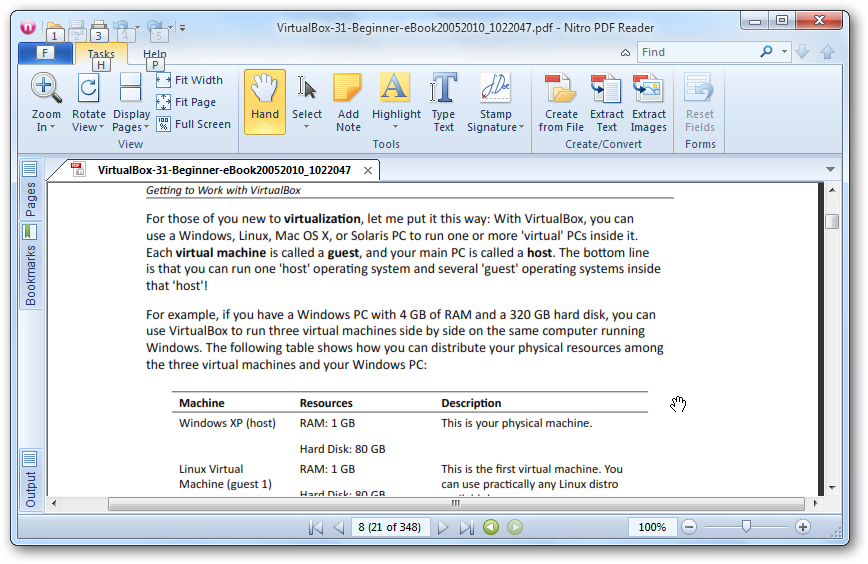
Considering I reviewed an eBook copy of VirtualBox 3.1 Beginner’s Guide, I thought I’d mention the overall eBook experience with the book. First, this book is published by Packt Publishing, and they offer all of their books either in standard paper (a real book) or as a DRM-free PDF. Just like most publishers today, they offer the eBook versions for much less than the paper version, so if you don’t mind reading on your screen or ereader device they can be a great value. The PDFs are fully searchable and are designed to fit nicely on the screen. The actual text of the book is about 520 pixels wide, so it will display nicely even on smaller screens. And, you can even print the eBook yourself if you decide you’d rather have it on paper.
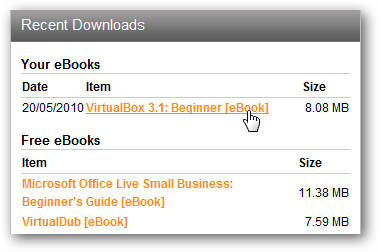
You can always re-download your PDF eBook purchases from Packt with your online account. Simply login to your account and scroll down to the Recent Downloads section. Here you can select and download your purchased eBooks along with other free eBooks that may be available. The download will be in zip format, so download it and then extract the PDF from the zip file, and you’re ready to read.
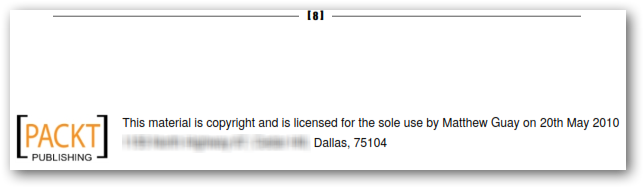
One interesting thing about Packt eBooks is that they include your name and billing address on the footer of each page. This is an anti-piracy measure, and I found it a nice way to make sure people are honest with their digital purchases while still giving you the freedom of a PDF eBook without DRM.
Conclusion
VirtualBox 3.1 Beginner’s Guide is available directly from Packt Publishing for $44.99 for the standard book or $33.99 for the eBook. If you’d rather have both, you can purchase both the ebook and the paper book as a set for $50.99. Packt offers free shipping in many locations around the world. Alternately, if you’re an Amazon customer, it is also available from Amazon.com for $39.50, which is actually the best deal if you wish to purchase the paper book. Or, if you’d like to read more before you actually purchase the book, check out this sample chapter for a full exercise you can try out and see if this book is good for you.
As always, the VirtualBox software itself is a free download from Oracle (formally Sun). You may notice that the current version is 3.2 (or possibly a higher version, depending on when you check), but as long as the version is 3.something, it should generally look and work the same as the book shows. The recent 3.2 update added some features, but it didn’t change anything covered in the book.
Foxit Reader is one of the most popular alternates to Adobe Reader, and users around the world have chosen to use it as their default PDF reader on Windows, Linux, and a variety of mobile devices. Today the latest version, Foxit Reader 4.0, is being released, so here’s our look at the new features.
Foxit Reader has always been a great PDF reader, since it’s lightweight (using under 10Mb of ram when running without a PDF open), fast, and secure. Foxit Reader was also extendable with a variety of for-pay addons including the Pro Pack that let you markup and perform basic edits on PDFs. And since it is cross-platform, Foxit has been the go-to PDF reader for users who want the same features on both Windows and Linux.
But now, there’s 4.0
Today, however, Foxit Reader is freer than ever. The latest version, Reader 4.0, that is being released today, included markup and editing tools for free in the standard Reader install. You can add notes, insert words, stamp your signature, or even add multimedia files such as mp4 videos directly to PDFs, all in Foxit Reader for free. Let’s look at the latest version, and what you’ll find to make your PDF editing easier than ever.
Getting Started
Download the latest version of Foxit Reader from the link below, and run the installer as normal.
Foxit Reader 4 uses Safe Reading Mode by default, which helps protect your computer from malicious PDFs. As PDFs have been increasingly targeted by hackers, we recommend you leave it enabled as default; however, if you’d prefer, you can uncheck the box during the setup to have PDFs render in standard mode.
Additionally, you can choose to not install links to 3rd party sites if you do not want these. Unlike in previous versions, Foxit Reader 4 still includes all of its advanced features even if you don’t install the optional tie-in products.
Once it’s installed, launch it from the start menu or select to run it immediately at the end of the installation. Welcome to the latest version of Foxit!
Note that some features, including spell checking and OnDemand CM, require a separate, free download. When you try to use a feature that needs a download, Foxit will prompt you to download the extra component. Click Yes at the prompt to automatically download and install the extra components.
New Features
Foxit Reader 4 looks very similar to previous versions, and uses the same toolbars and menu system. This makes it easy for longtime users to find their way around, though we were slightly disappointed to not see a more updated UI.
It still renders PDFs great, and we could not tell any formatting differences from other PDF applications.
But, there’s plenty more to be excited about under the hood. You can quickly get started marking up and adding content to PDFs from the toolbar on the bottom right.
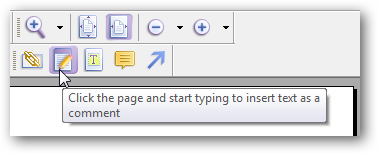
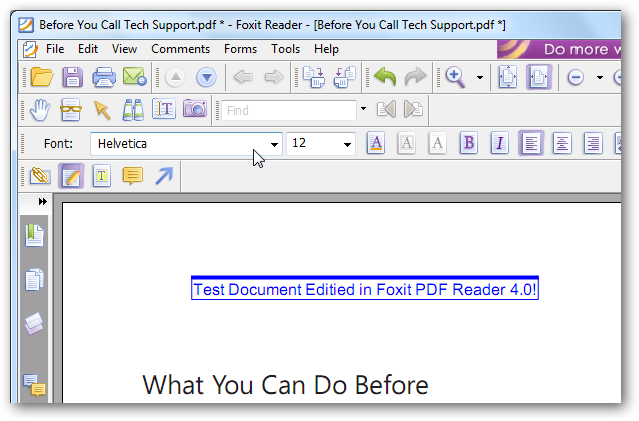
You can insert text directly on a PDF document. Note that you cannot actually remove existing words and replace them, but you could add an extra line of text if you need.
Fun Fact: Interestingly, Foxit Reader uses Helvetica as the default editing font, even if Helvetica isn’t installed on your computer.
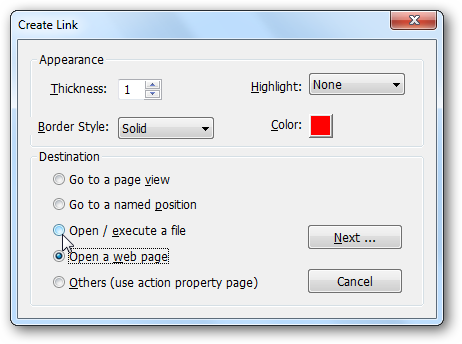
You can also select any section of the PDF and make it into a link to a file, website, or location in a PDF. This is very useful if you’d like to add a linked Table of Contents to a PDF ebook, for example.
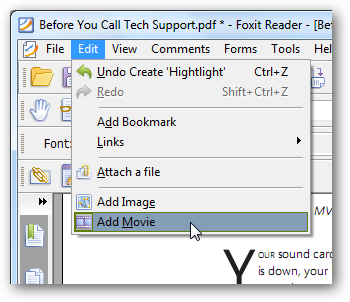
One of the most exciting features is the ability to add multimedia content to a PDF. From the Edit menu, you can add images or movies to a PDF, or even attach another file to the document.
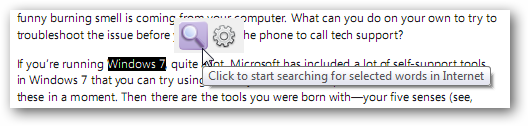
Foxit makes it easy to find more information about anything. Simply select a word with the selection tool, and a small popup will hover near the selection that lets you search for the term on the internet.
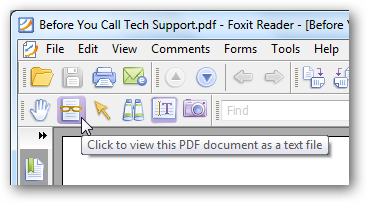
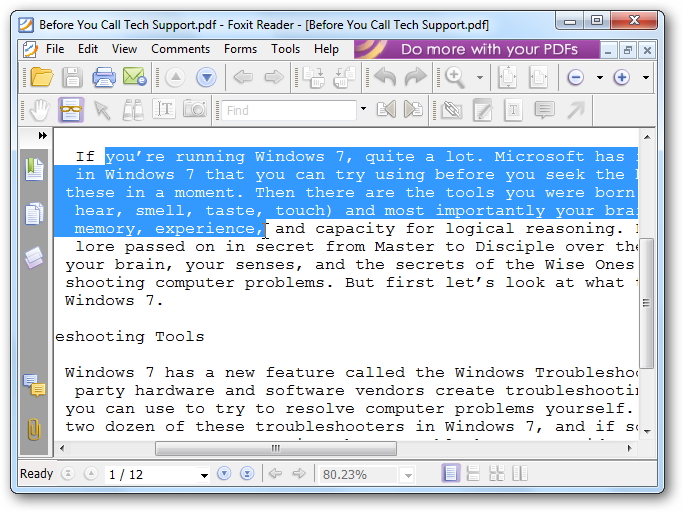
Another cool feature is that you can view a PDF as a text file. Click the glasses icon to activate this feature.
Now you can focus just on the content, which can be nice if you’re distracted by sidebars and images in a PDF ebook. This also makes it easy to select text to copy and use elsewhere.
Conclusion
Foxit Reader 4 is still an excellent PDF reader, but more exciting are the new markup and editing tools. While Reader is still not a full-fledged PDF editing suite, it does include many features that will make it nice for many home and business users. And, since all of the features are free, Foxit Reader 4 doesn’t feel like a limited product, and doesn’t nag you to purchase upgrades.
So if you’re a longtime Foxit Reader user, or regularly use another PDF reader but would like more control over your documents, Foxit Reader 4 is a great upgrade. It’s fast, keeps you secure, and even lets you take your documents further!
The latest and greatest version of WordPress, the software that powers Techinch and many other blogs and websites around the ‘net, was just released. WordPress 3.0 brings some major new features and style to the platform, and I’m excited to say that Techinch.com was updated to the final release version only minutes after it was released. The upgrade went smoothly, and only took a couple minutes. If you’d like to upgrade your site, here’s how to do it.
Backup Before you Mess Up
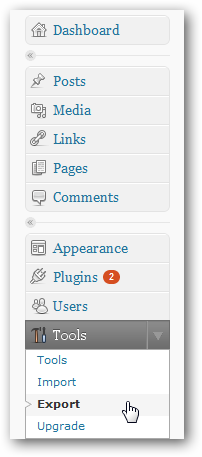
If you’re ready to upgrade your blog, login to your WordPress dashboard. You should always make sure you have a current backup of your blog’s content just in case something goes wrong, so scroll down to the Tools menu on the left side of the Dashboard and select Export.
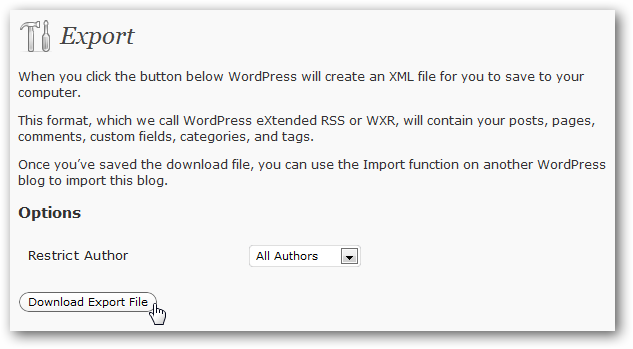
Click the Download Export File button at the bottom, and save the XML file to a safe location on your computer. Now if something goes wrong you can reinstall WordPress and import your posts, comments, pages, and more, just like they were before you upgraded.
Upgrade your Blog in minutes
Now you’re ready to get WordPress 3.0 running on your site. You may see a yellow banner on the top of your site advising you to upgrade; click the Please update now to get started.
Otherwise, scroll down to the Tools section again, and click Upgrade.
Now make the leap … click the Upgrade Automatically to have WordPress download and install the upgrade automatically. Notice the warning to backup your files; if you didn’t do this already, go do it now just in case!
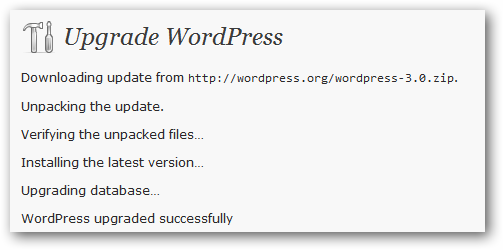
WordPress will show you its progress as it installs the new version. After a few moments, you should see the final message stating that WordPress upgraded successfully.
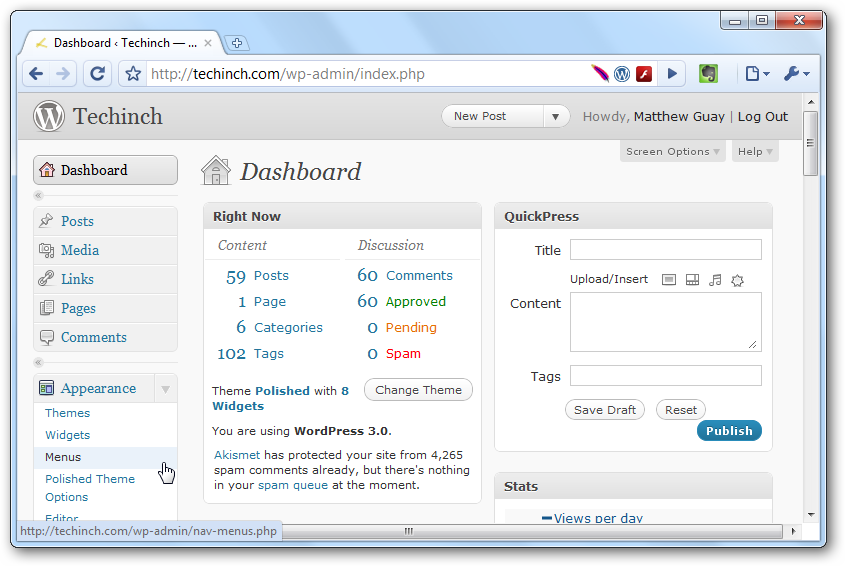
Click the Dashboard link in the menu, and you’ll now see the new Dashboard theme. Welcome to WordPress 3.0! You can even see the new Menus link under Appearance, where you can now edit your menus easily directly from WordPress.
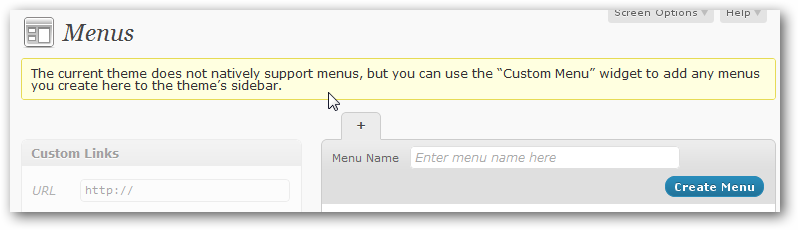
Many themes currently don’t support the new Menus, so watch your theme developer’s site for news about updates. Until then, though, you can still use WordPress as normal, and take advantage of all it’s other features. Or, you could try out the new Twenty Ten theme, as it is really nice!
But wait … what’s actually new in WordPress 3.0?
Hey, glad you asked … no reason to upgrade your blog for no reason! Check out the blog post announcing WordPress 3.0’s launch for more information, or just kill a few minutes watching this video which sums up the major new features nicely.
Office 2010 has just been released to the public, and many of us are excitedly upgrading to the latest version (especially students, who happen to get a really good deal :) ). But what exactly does Office 2010 offer users? Users of Office 2003 and earlier will notice major changes with the ribbon interface, but if you’ve already been using Office 2007 this won’t feel new. So here are some quick videos from Microsoft that give you an overview of some of the new features in Office 2010.
Being a college student can be awful at times … between homework and rising tuition costs, it seems like you never get a break. But guess what? There are still some great advantages to being a student, and one of the biggest is the discounts you can get on software. Microsoft gives very generous discounts to students on their most popular products, and even gives away their developer tools with the Dreamspark program. College bookstores usually carry discounted software, but they may take months to get the latest programs in stock. Now, the need to wait is over … students can download steeply discounted software directly from Microsoft today!
The Ultimate Steal (that’s still legal and available)
Yeah, I know, you’re not supposed to steal. Actually, Microsoft spends millions every year trying to keep people from stealing (pirating) their software. But this is the other kind of steal … an amazing deal! Microsoft has ran the Ultimate Steal special at ultimatesteal.com for the past several years, but now the program has been merged into their standard student discount page. But don’t worry … even though the Ultimate Steal has disappeared, the specials are still there for you to take advantage of. The old address still works, and the discounts are still great.
If you’re a current college student, you can get amazing discounts on both Office 2010 and Windows 7 Professional. Here’s more details:
Office Professional Academic 2010
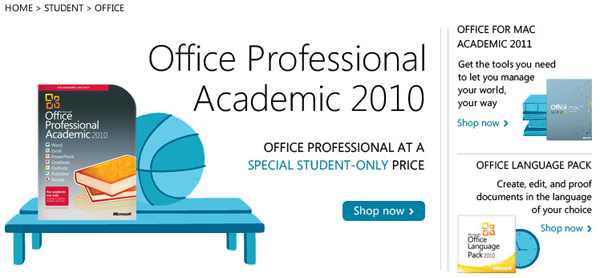
Microsoft has simplified the Office suite lineup with Office 2010, and today there are far fewer versions of Office to choose from. Office 2010 is available in 3 main retail editions: Home and Student, Home and Business, and Professional. For students, there’s an extra edition … Office Professional Academic 2010. This edition contains everything in Office Professional 2010, but is specially licensed for academic use. It includes:
Word 2010
Excel 2010
PowerPoint 2010
OneNote 2010
Outlook 2010
Publisher 2010
Access 2010
Microsoft has ran several different student prices over the past year, but it's not settled at $99.95 for Office Professional 2010. This is still a great discount off of Office 2010 Professional’s retail price, $499. Or, if you're using a Mac and still need Microsoft Office, you can get Office for Mac 2011 for $99.95 as well.
To get it, just head over to the Microsoft Store Student Discount page, and select the edition you need. Now follow the steps below to finish your purchase and get your Office 2010 up and running!
Windows 7 Professional Upgrade
Last fall, Microsoft ran the Win741.com promotion around the time of Windows 7’s launch. It let students upgrade to Windows 7 for just $29.99. The promotion ended after a couple months, and was replaced by an Ultimate Steal discount which let students purchase Windows 7 for $64.95.
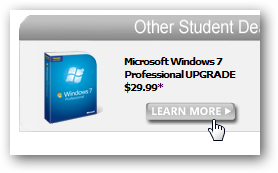
Now, with the new Microsoft Store Student Discounts page, the Win741 price is back!!! Students can now upgrade to Windows 7 Professional for just $29.99. If you haven’t upgraded to Windows 7 yet, this is a great way to get upgraded to the latest and greatest version of Windows. Or, if you’ve purchased a new netbook with Windows 7 Starter, this is an economical way to add more advanced features to your netbook, and you can simply purchase this and use the product key in Windows Anytime Upgrade.
To take advantage of this deal, head over to the Student Discount page, and click More info beside the Windows 7 box.
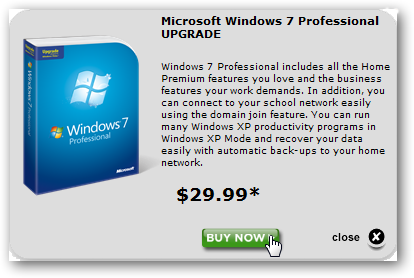
Review the information in the popup box, and then click Buy Now on the bottom of the dialog. Remember, this is Windows 7 Professional, which includes all of the great Windows 7 features plus new features such as XP Mode.
Finally, follow the steps below to complete your purchase. Note that you’ll need to burn your Windows 7 upgrade to a DVD, and if your computer is currently running Windows XP, you will have to clean install Windows and reinstall all of your programs. As always, make sure you’ve backed up your files before upgrading Windows.
Or, if you’re wanting to upgrade your netbook that’s running Windows 7 Starter to Windows 7 Professional, you won’t need to burn it to a DVD. Instead, don’t download the Windows 7 software but just copy the Product Key and follow this tutorial to upgrade using Windows Anytime Upgrade.
Purchasing Software from the Microsoft Student Discount site
If you’ve purchased software with the Ultimate Steal discount before, such as Office 2007, you’ll be used to the process as the website works the exact same as before. First, enter your college email address, and click Submit.
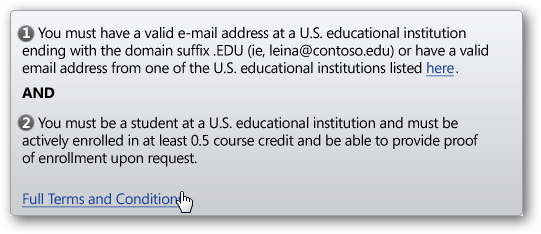
Please note that you must be enrolled in a valid US educational institution for at least 0.5 course credits currently to purchase with this discount.
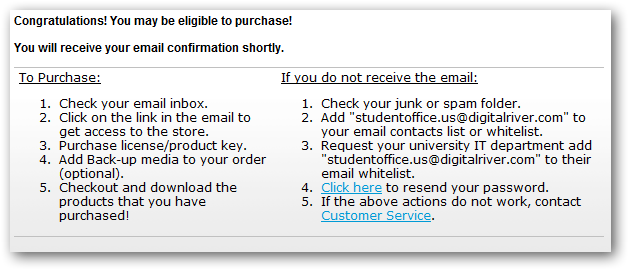
Once you’ve entered the info, you will see this message. Check your college email, and if you’re eligible you’ll receive an email with a link to purchase Office with the Ultimate Steal discount.
Now click the link in the email, and complete the purchase as you do for any other online purchase. When you’re done, you’ll receive a download link and a product key. Download the software you’ve purchased, install as normal, and activate it with the product key you’ve received.
Conclusion
Windows 7 and Office 2010 are some of the best products Microsoft has ever released, and getting them cheaper than ever just makes them better. Hey, there are still some advantages to being a student!!!
And don’t forget … if you purchased Office 2007 since March 5th, 2010, you’re eligible for a free upgrade to Office 2010. Head over to www.office.com/techg to claim your upgrade, or check back here for more detailed information on how to get your free Office 2010 upgrade.
Cloud computing has taken the world by storm. From the newly released Microsoft Office Web Apps and the popular Google Apps to collaboration tools such as Dropbox and Backpack from 37signals, more and more of us are using online applications and storing more data in the “cloud” every day. But with our data scattered around between various services, we still keep large amounts of data on our computers. Favorite mp3s, irreplaceable pictures, and critical documents are often left on our computers, venerable to hard drive crashes and theft. Most backup media, including DVDs and external hard drives, are susceptible to the same problems.
Cloud computing offers an ideal solution to this. Cloud computing, boiled down to its essence, is simply using computer resources on servers via the internet. And today there are many tools that can help you take advantage of cloud computing to backup your computer. Microsoft has recently released a new cloud computing platform, Windows Azure, that lets you run applications and store your data on their servers. No matter what happens to your computer, anything you store on Azure will still be accessible from any computer.
Using services like Azure can seem confusing, especially if you’re not a geek. Today, however, anyone can easily use Windows Azure to backup their computers quickly and easily with the brand-new CloudBerry Online Backup for Windows Azure. This simple to use application lets you backup your computer intuitively, just like many other backup programs you may have used. But while most backup programs help you save your files to DVDs or an external drive, CloudBerry for Windows Azure backs up your files to Windows Azure, so you can always access your backups wherever you are. And, best of all, for a limited time, you can use both CloudBerry for Windows Azure and the Windows Azure service for free! Keep reading to see how easy it is to keep your data backed up … in the Windows Azure cloud.
Getting Started
First you’ll need to have a Windows Azure account. If you don’t already have an account, check out our article on how to Setup Your Windows Azure Account. And, remember, until July 31, 2010, you can store up to 500Mb for free.
Now you’re ready to start using CloudBerry Online Backup for Windows Azure. Download it from the link below, and install as usual. CloudBerry Online Backup for Windows Azure is free with registration during the beta period, so if you install it now you’ll get to keep it for free. If you’re getting started with CloudBerry after the beta period is over, you can run the free trial for 14 days and then purchase a full version for $29.99.
Once it’s installed, run the program to get started backing up your computer. During the free beta period, enter your name and email to get a free registration key. Enter the key you receive in an email, and then click Ok.
If you’re getting started with CloudBerry after the free beta period, you can click Request Trial to activate a 14 day trial, or click Buy to purchase a license key. Once you have your key, enter it in the box and click Activate.
Now you’re all set … Welcome to CloudBerry Online Backup for Windows Azure!
Setup an Online Backup
Now you’re ready to start backing up your files online to Windows Azure. Click Setup Backup Plan in the CloudBerry main window.
It’s fairly easy to setup your backup, but we’ll step through the wizard together so you’ll know what to expect.
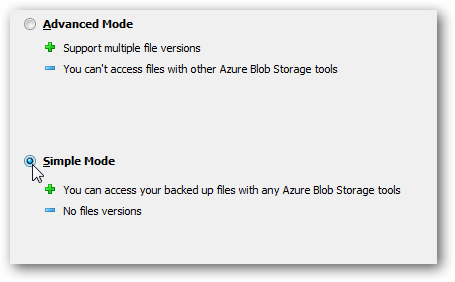
First choose if you want Advanced or Simple mode. Advanced mode is selected by default, but we chose Simple mode so we can access our files with any Azure Blob tool including ClourBerry’s free Explorer for Azure.
Since this is our first backup to setup, we’ll need to create a new account.
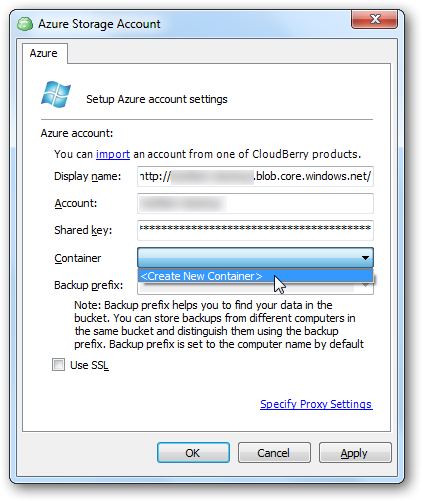
Enter your Azure account information. Notice that your Account name is the same as the first part of your Display name’s address. Now click the Container button, and select Create New Container.
Enter a name for your container, and choose if you want this container to be open for public access. For most backups, you’ll want to choose No public read access, but if you’re backing up files you want to link to on your blog or website, you could choose public access. Click Ok when you’re done, and then click Ok in the previous dialog.
Now, choose the files and/or folders you wish to backup. You can backup whole top-level folders such as your User folder, or you can simply choose the folders and files you want backed up online.
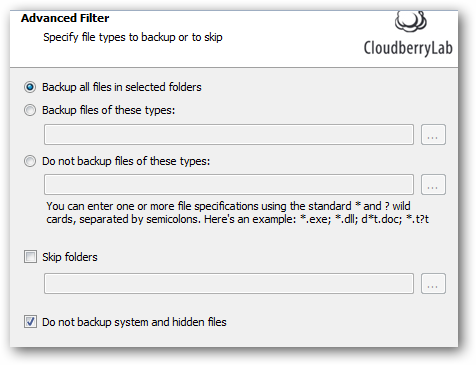
Choose if you want to backup all of the files in the folders, or if you want to not backup certain files such as system and hidden files. You can then choose to compress the files to save space, and choose whether you want to save older versions of changed files. This is a great option to help you save only the most important files and scale the amount of storage used on Azure to the level that works best for you.
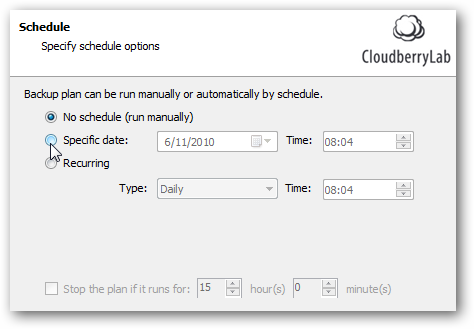
Finally, set the schedule you want to use for your backup. You can choose to only run it manually, or set it to automatically run. And, you can even choose to have CloudBerry email you a status report when it runs the backup.
We can now run our backup. In our test, the files uploaded to Azure very quickly, though it still may take quite a while depending on your internet upload speed and the number and size of files you’re backing up.
You can also now activate preset backup plans, such as the very useful My Internet Bookmarks backup plan. Simply select the plan, and click Run backup now. You may have to configure a few settings, but with only a couple clicks we were able to have our Firefox, Internet Explorer, and Google Chrome bookmarks backed up to our Azure storage.
Note: The Internet Bookmarks backup plan only worked when running CloudBerry in Administrative Mode in Windows 7. This is a bug that is planned to be fixed in an upcoming update.
Once your files are backed up, you can browse them in Azure and restore them quickly via the Backup Storage tab.
Now your Welcome Page will show your backup plans, total space used on Azure, settings, and more. You can also now restore files from your backup directly from the Welcome Page.
And you’ll always be sure to have the latest version of CloudBerry Backup installed, since it will automatically check for updates on startup when you’re online. If a newer version of CloudBerry Backup is available, click Download and install the update. The update installer may be the same as the original installer, but don’t be worried, you backup settings will still be kept the same after it’s installed.
Price
As mentioned before, both Cloudberry for Windows Azure and the Windows Azure service are free for a limited time. And, the great thing is, if you start using Cloudberry backup now, you’ll get to keep using the program for free, even when the free beta period is over. If you didn’t get in on the free beta, Cloudberry Backup is reasonably priced at $29.99 per copy.
Windows Azure additionally is free for up to 500Mb of storage until July 31, 2010. Any data over that amount, and all data after that date, will cost $0.15 per gigabyte per month. Plus, it will cost $0.10 per gigabyte of data transferred to Windows Azure. Still, for most users, this works out to a fairly reasonable amount. Say you want to backup 15Gb of pictures and 5Gb of documents with Windows Azure starting on August 1, 2010, and you upload 1Gb worth of changes per month. Here’s what the backup would cost you between now and the end of the year:
August
$5.00
Initial Backup + storage
September
$3.10
Storage + backup updates
October
$3.10
-
November
$3.10
-
December
$3.10
-
Total:
$17.40
This works out very reasonably, especially when you consider that your files are being backed up redundantly in Azure servers around the world, so you’re certain to be able to recover your files no matter what happens.
Conclusion
CloudBerry Online Backup for Windows Azure is a great tool to help you keep your files backed up online. It worked very good in our tests, and we were very impressed with the upload speeds to the Windows Azure server. Setup is still somewhat confusing right now, partly due to Azure setup, but we hope this will be streamlined in future versions. Additionally, we’d like to see CloudBerry’s S3 and Azure backup programs merged so we could manager backups on both services simultaneously. Still, if you’d like to get started backing up your files on the Azure cloud, there’s no better time to get started than now since you can get started now for free! So give it a try, and let us know how backing up your computer in the Azure cloud works for you!
And, if you’re curious about CloudBerry’s other tools such as Explorer for Azure and Backup for Amazon S3 work, check back soon for reviews of these products as well!
Are you ready to get started with cloud computing? Whether you’re a developer wanting to tab cloud resources for your application or are simply a home user wanting to backup your files securely online, Windows Azure is a great cloud computing service from Microsoft that can meet your needs no matter how large or small. You can use as little or much storage or computing power as you need, and be certain that your projects and files will always be available worldwide. And although signing up for Azure is slightly difficult, once you have an account it is very easy to add storage and computing services and start using them with your applications.
In this example, we’re signing up for Windows Azure and setting up a Blob storage account for online backup with CloudBerry Online Backup for Windows Azure, but these steps are the same you’d use to signup and use any Windows Azure service.
Getting Started
Head to the Windows Azure website (link below), and click the Sign up now button. Select the account you want. Until July 31, 2010, you can choose the Introductory Special which gives you 500Mb of storage for free. Otherwise, choose the Pay as you Go plan.
Login with your Windows Live ID, and enter your profile information including your name, address and email. You may be asked for business information, but if you’re using Azure for your personal backup just enter your name or perhaps your personal website’s name.
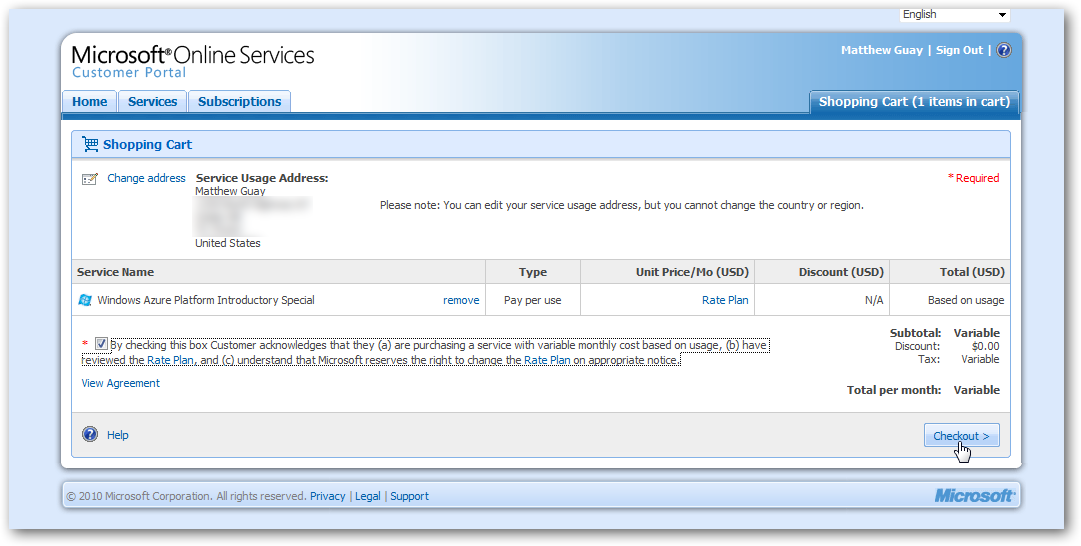
Now, check the box to accept the rate plan and agreement, and click Checkout.
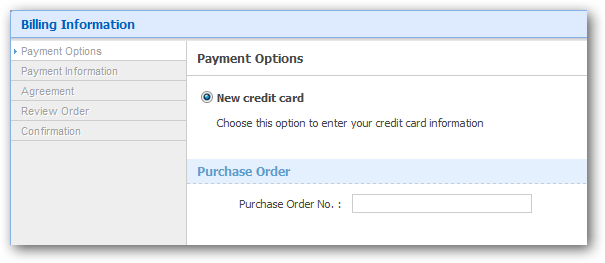
Enter your payment information as normal. Note that you’ll need to enter credit card information even if you’re signing up for the free introductory offer.
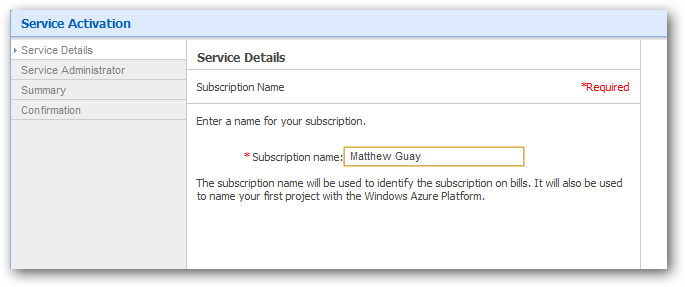
Finally, enter Administrator details for your Azure account, and confirm that all of your information is correct.
Once everything entered, you’ll need to wait for your service to be activated. Our account was activated in under an hour, but this may take up to 24 hours. You’ll also receive an email with details about your service and how to login to the various components.
Activate Your Azure Blog Storage
As mentioned above, we setup this Azure account to use for online backup with CloudBerry Online Backup for Windows Azure, so we want to setup a storage service. The steps are similar, however, for activating any of the other Azure services.
Login to your Azure dashboard at https://windows.azure.com/ using your Windows Live ID. Click your account name in the dashboard, and then click the New Service link on the top right.
Click Storage Account to start setting up your account for backup.
Enter a name for your service, and a description if you wish. If you plan to have multiple storage services in your Azure account, make sure to give it a unique name so you can easily identify it.
Now, enter a unique public name for your storage account. Don’t worry; only the files you expressly mark as public will be accessible to others, so in reality if you’re setting up this account for your own backups, you’ll be the only one to see and use this address.
Also, select a region near you where you wish for your files to be stored. Your Azure files will be redundantly stored in multiple server locations, but this will let you choose a server near you for your primary storage so it will be the fastest to access. Finally, click Create when everything’s ready to go.
Azure may take a few moments to create your new service…
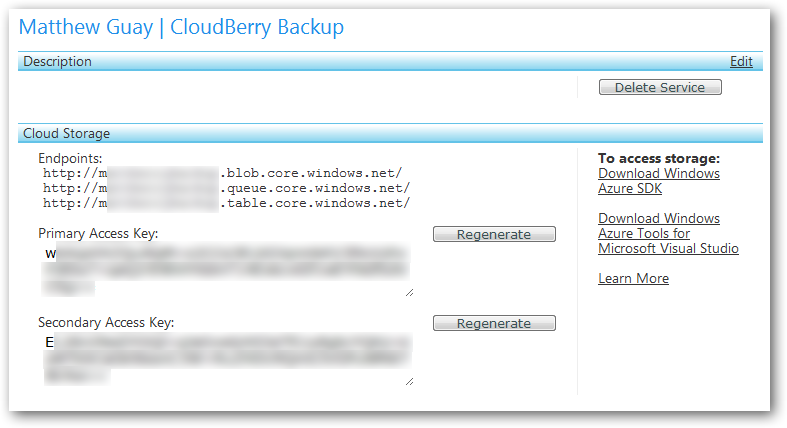
…and then you’ll be presented with your account info. You’ll have endpoint addresses to access your storage, and access keys to access it via programs.
And, now when you sign in to your Azure account, you’ll see your service along with links to start new services.
But this is just the beginning … now you can use your online computing and storage at Azure to create great applications, deliver content across the world, and even backup your personal documents, pictures, and more with tools like CloudBerry Online Backup for Windows Azure.
Conclusion
Windows Azure is one of the most exciting projects to come from Microsoft recently, as it points to the future of dynamically accessible and allocable computing resources in the cloud. Although it may not seem as interesting as Office 2010, Windows 7, or the upcoming Windows Phone 7, expect to see Azure and related services increasingly used to deliver services and applications across the web. And you can harness this power today, and even get started for free until July 31, 2010.
Have you ever wondered which fonts are included with Adobe Photoshop? I’ve recently been comparing Photoshop CS4, CS5, and Elements 8 with trial versions installed in XP on VMware Workstation. This actually works very good for looking over the feature differences between each edition. One thing I was especially curious about was which fonts Adobe included in each product. I searched the internet and Adobe’s site, but couldn’t find anywhere that listed the fonts that were included with these products. Microsoft regularly lists the fonts they included with different editions of Windows and Office online, but I could find no such list from Adobe. So here it is … the list of new fonts added to my virtual machine after installing the trial versions of Photoshop CS4, CS5, and Elements 8. Each of the fonts are linked to that font’s page on Adobe’s website, though I couldn’t find links for several of the fonts.
Update: I now also added the fonts included with Adobe Premiere Elements 8, since this is commonly purchased with Photoshop Elements 8 in the Adobe Photoshop & Premiere Elements 8 Bundle. And, interestingly enough, it adds almost all of the fonts included with the full versions of Photoshop, so you’ll be missing out on even less fonts. Actually, it even includes 2 fonts, Courier Std and Premiere, that aren’t included in the CS editions of Photoshop. Nice :)
Photoshop CS5 includes 3 fonts not included with Photoshop CS4, but it is also missing 3 fonts that were included with Photoshop CS4!
Although Photoshop Elements 8 includes far fewer fonts than its professional brothers, it includes the Myriad Web Pro font set in addition to the standard Myriad Pro, while the CS versions only include Myriad Pro itself
The CS versions of Photoshop both installed all of their fonts in the standard font folder:
C:\Windows\Fonts
However, Photoshop and Premiere Elements 8 installed all of the fonts except for Myriad Web Pro in a special Adobe folder:
C:\Program Files\Common Files\Adobe\Fonts
So, if you have Photoshop Elements and want to use your Adobe fonts in other applications such as Microsoft Word, copy them from this folder to the Windows\Fonts folder.
Conclusion
I first encountered Adobe’s Minion Pro and Myriad Pro fonts on Adobe.com’s Buzzword, and was disappointed to find that I didn’t have these fonts when I tried to open a document saved with these fonts in Word on my desktop. So it’s exciting to see these fonts included with all editions of Photoshop, including the cheaper Elements editions. But I was disappointed to find that none of these include the popular Helvetica font, since it isn’t included in Windows, either.
And one other thing … if you want any of the fonts included in Elements, you’re likely going to come out cheaper by buying it than by buying the fonts individually, since each font individually usually costs $30 or more! Plus, if you buy the Adobe Photoshop & Premiere Elements 8 Bundle, you’ll end up with almost all the fonts from Photoshop CS plus a couple extras. :)
Regular readers know I’m a fan of ebooks, and have recently written several posts about reading ebooks on your computer. I’m also a fan of desktop virtualization, and have published numerous articles here and at How-to Geek about Virtual PC, VMware, VirtualBox, and the (in my words) Desktop Virtualization Wars. So, when I was recently contacted by a representative of Packt Publishing about reviewing a book they’ve recently published on VirtualBox, I thought it’d be an interesting opportunity to try something new – reviewing an ebook.
First off, VirtualBox 3.1 Beginner’s Guide, the book I will be reviewing, is available both as a print book and an ebook. Packt Publishing always published their books both in paper form and as a DRM-free PDF, which is very nice. This book is aimed at helping users who are new at desktop virtualization get up to speed quickly with step-by-step tutorials on using VirtualBox. The book’s style is similar to the For Dummies books, so if you enjoy those type of books you may find this book both enjoyable and helpful. You won’t learn how to manage enterprise virtualization from this book, but for those who are starting out, it may be a great help.
I’ll be reading this book over the next couple weeks before I write an actual review, but I’d also like your help. What would you like to find out about this book? Do you have any questions I could help answer in the review? Check out the free preview chapter of the book at this link, and then sound off in the comments about what you’d like to see in the review. Hopefully this will be the first of many tech ebook reviews here at Techinch, so please give your feedback and we’ll see where this goes together!

 , which is actually the best deal if you wish to purchase the paper book. Or, if you’d like to read more before you actually purchase the book, check out
 ![sshot-2010-06-28-[18-02-42][3]](https://techinch.com/wp-content/uploads/2010/06/sshot201006281802423.png "sshot-2010-06-28-[18-02-42][3]")
![sshot-2010-06-28-[18-03-07]](https://techinch.com/wp-content/uploads/2010/06/sshot20100628180307.png "sshot-2010-06-28-[18-03-07]")
![sshot-2010-06-28-[18-03-21]](https://techinch.com/wp-content/uploads/2010/06/sshot20100628180321.png "sshot-2010-06-28-[18-03-21]")
![sshot-2010-06-28-[18-03-52]](https://techinch.com/wp-content/uploads/2010/06/sshot20100628180352.png "sshot-2010-06-28-[18-03-52]")
![sshot-2010-06-28-[18-05-18]](https://techinch.com/wp-content/uploads/2010/06/sshot20100628180518.png "sshot-2010-06-28-[18-05-18]")
![sshot-2010-06-29-[18-30-19]](https://techinch.com/wp-content/uploads/2010/06/sshot20100629183019.png "sshot-2010-06-29-[18-30-19]")

![sshot-2010-06-17-[23-40-02]](http://techinch.com/wp-content/uploads/2010/06/sshot20100617234002.png "sshot-2010-06-17-[23-40-02]")
![sshot-2010-06-17-[23-40-43]](http://techinch.com/wp-content/uploads/2010/06/sshot20100617234043.png "sshot-2010-06-17-[23-40-43]")

![sshot-2010-06-12-[15-34-29]](https://techinch.com/wp-content/uploads/2010/06/sshot20100612153429.png "sshot-2010-06-12-[15-34-29]")
![sshot-2010-06-12-[15-35-08]](https://techinch.com/wp-content/uploads/2010/06/sshot20100612153508.png "sshot-2010-06-12-[15-35-08]")
![sshot-2010-06-11-[07-40-32]](https://techinch.com/wp-content/uploads/2010/06/sshot20100611074032.png "sshot-2010-06-11-[07-40-32]")
![sshot-2010-06-11-[07-44-30]](https://techinch.com/wp-content/uploads/2010/06/sshot20100611074430.png "sshot-2010-06-11-[07-44-30]")
![sshot-2010-06-11-[07-45-04]](https://techinch.com/wp-content/uploads/2010/06/sshot20100611074504.png "sshot-2010-06-11-[07-45-04]")
![sshot-2010-06-11-[07-45-09]](https://techinch.com/wp-content/uploads/2010/06/sshot20100611074509.png "sshot-2010-06-11-[07-45-09]")
![sshot-2010-06-11-[07-45-49]](https://techinch.com/wp-content/uploads/2010/06/sshot20100611074549.png "sshot-2010-06-11-[07-45-49]")
![sshot-2010-06-11-[08-00-28]](https://techinch.com/wp-content/uploads/2010/06/sshot20100611080028.png "sshot-2010-06-11-[08-00-28]")
![sshot-2010-06-11-[08-04-00]](https://techinch.com/wp-content/uploads/2010/06/sshot20100611080400.png "sshot-2010-06-11-[08-04-00]")
![sshot-2010-06-11-[08-08-08]](https://techinch.com/wp-content/uploads/2010/06/sshot20100611080808.png "sshot-2010-06-11-[08-08-08]")
![sshot-2010-06-11-[08-20-59]](https://techinch.com/wp-content/uploads/2010/06/sshot20100611082059.png "sshot-2010-06-11-[08-20-59]")
![sshot-2010-06-11-[08-09-25]](https://techinch.com/wp-content/uploads/2010/06/sshot20100611080925.png "sshot-2010-06-11-[08-09-25]")

![sshot-2010-06-12-[15-33-02]](https://techinch.com/wp-content/uploads/2010/06/sshot20100612153302.png "sshot-2010-06-12-[15-33-02]")


![sshot-2010-06-14-[22-27-31]](file:///C:/Users/Matthew/AppData/Local/Temp/WindowsLiveWriter393614076/supfiles3F657/sshot-2010-06-14-[22-27-31][2].png "sshot-2010-06-14-[22-27-31]")
![sshot-2010-06-11-[07-50-07]](http://techinch.com/wp-content/uploads/2010/06/sshot20100611075007.png "sshot-2010-06-11-[07-50-07]")
![sshot-2010-06-11-[07-50-24]](http://techinch.com/wp-content/uploads/2010/06/sshot20100611075024.png "sshot-2010-06-11-[07-50-24]")
![sshot-2010-06-11-[07-51-05]](http://techinch.com/wp-content/uploads/2010/06/sshot20100611075105.png "sshot-2010-06-11-[07-51-05]")
![sshot-2010-06-11-[07-52-03]](http://techinch.com/wp-content/uploads/2010/06/sshot20100611075203.png "sshot-2010-06-11-[07-52-03]")
![sshot-2010-06-11-[07-53-32]](http://techinch.com/wp-content/uploads/2010/06/sshot20100611075332.png "sshot-2010-06-11-[07-53-32]")

 And, interestingly enough, it adds almost all of the fonts included with the full versions of Photoshop, so you’ll be missing out on even less fonts. Actually, it even includes 2 fonts, Courier Std and Premiere, that aren’t included in the CS editions of Photoshop. Nice :)


