Over the past few months, I've switched to using Simplenote as my primary app for taking notes. With its beautiful web app and companion app such as ResophNotes on Windows, Notational Velocity or nvALT on OS X, or the official Simplenote apps on iOS, it's always easy to jot down plain text notes and find anything I've saved. For almost all purposes, I find plain text much better for writing notes, but when I need more, Simplenote's Markdown support works great.
[caption id="" align="aligncenter" width="606" caption="Markdown Formatting in Simplenote"][/caption]
I recently wrote up an article about some of the more advanced features in Simplenote, including To-do lists in the iOS app, Markdown formatting, restoring previous versions of notes, advanced search, tweaking the web app, sharing notes, and more. These are the features that take Simplenote from just a way to store plain text into a great collaboration and simple publishing tool, and are some of the reasons I use it all the time.
Today on Web.AppStorm.net, I wrote up an overview of the newest features of LucidChart, the best Visio substitute I've ever found. It's been an awesome app for quite some time, but the most recent updates make it one of the more advanced web apps I've ever tried. It now supports offline mode, so you can edit your charts when the internet is down. It can also import Visio files, so you can get rid of it for good.
Best of all, it now has amazing integration with Safari on iPad, allowing you to sketch out drawings and turn them into precice diagrams quickly. Most web apps feel out of place on the iPad, but not LucidChart. Unbeknownst to me at the time, my article was the first to mention the new iPad features. Click the link to read my full review, or check out the video below to see LucidChart in action on the iPad.
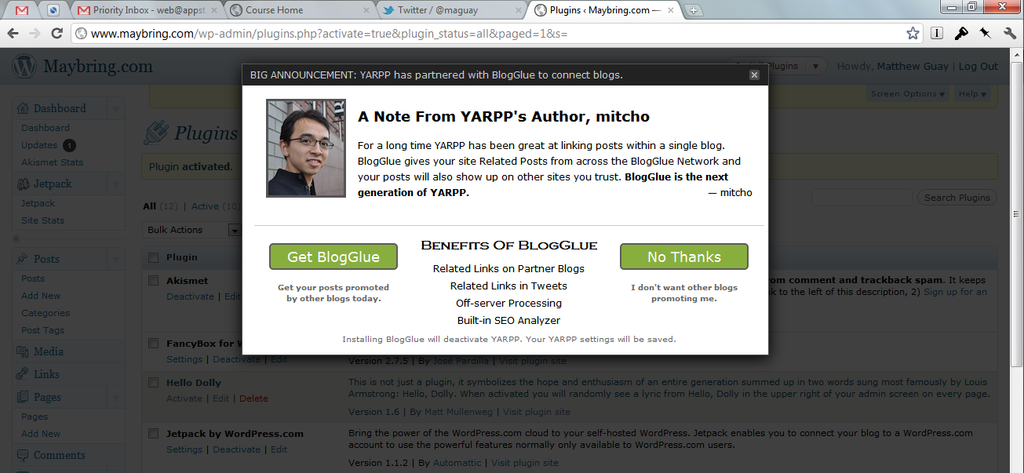
When you get used to an application just working, it can be a true surprise when it doesn't work as you expect. Minutes ago, I opened the Plugins page in WordPress on my site. When it loaded, I was stunned to see a popover asking me to upgrade to a new plugin. This was not a standard WordPress notification letting me know an update was available. It was a full popover that was essentially an advertisement for a new service, that took over your whole settings page until you closed the dialog. Talk about a surprise: it was as startling as ad popup windows when browsing the web in the '90's.
In WordPress, plugins typically only add a settings page, and potentially a widget on your main dashboard. Otherwise, they don't change your main WordPress experience unless they've been designed to do just that. In this case, the plugin, Yet Another Related Post Plugin, took over the entire WordPress experience in the native WordPress settings page. My initial reaction was to think that my site had been hacked. As soon as I realized where the popup came from, I immediately deactivated the plugin.
As a technology user, and as a writer who tries to decipher technology and explain it to others, I find myself increasingly appreciating clean, consistent user experiences. Users should be able to expect certain things from a platform. They should be able to expect that applications or add-ons to a platform will only affect the things they have been designed for.
There are two major things in technology that have changed the way many of us approach computing in the past few years: Dropbox and iOS. Dropbox enables us to keep all of our files synced seamlessly, so you never have to worry if that important file will be there when you need it. And iOS has freed many of us from the constraints of desktop computing, making it easier to be productive (and entertained...) on the go than ever before.
There’s only one problem: iOS and Dropbox don’t work perfectly together. iOS doesn’t include a full file system, so you can’t just sync Dropbox like you would on a Mac or PC. Then, the iWork apps, Omni apps such as OmniFocus and OmniOutliner, and more don’t include native Dropbox integration. That’s why DropDAV is such an exciting service. It lets you integrate your Dropbox account with any WebDAV enabled app. The service was recently updated to make it more reliable and faster, though at the same time, they’ve dropped their free plans. Now, you’ll need to sign up for a $5 per month subscription to use Dropbox via WebDAV on your iOS device. That’s not a bad bargin, considering that it can make your iOS device a much more productive tool on the go.
Special Techinch.com DropDAV discount
If you’re ready to try out DropDAV with your Dropbox account, we’ve got a special treat for you. In addition to the standard 14 day free trial, you can enter the coupon code techinch1 to get an extra month of DropDAV service for free. That’s essentially a $5 savings, and gives you a whole extra 30 days to see if it’s the service you need to get the most out of iWork, Omni apps, and more on your iPad.
We’d love to hear how DropDAV or your other favorite webDAV service makes it easier for you to make your iPad a productive business tool. Plus, with the new iWork apps on iPhone, you can even use this to get more productivity out of your iPhone or iPod Touch!
Don’t forget: use the code techinch1 for an extra free month of DropDAV!
Would you like to find some web apps that would make your life simpler and more productive? I've put together an incredibly long roundup of the web apps I think are the very best on Web.AppStorm. The article clocked in at 8,333 words, oddly enough, so there's plenty there for everyone. If it doesn't include your favorite app, be sure to leave a comment and share the web apps that make your tech life simpler!
Following is a guest post from Jared Brown, a friend I've made via Twitter and Talentolopy. Jared Brown is the founder of Talentopoly.com, a community for programmers, designers, and IT professionals staying current by sharing the best of what they discover online.
I’m a programmer by education, a designer by desire, and an IT profesional by necessity. One of my favorite apps for the past couple of months has been Instapaper. It’s such a simple but big impact concept. Before Instapaper I would save links to articles by emailing them to myself. Then later that day when I was winding down for the night and looking for something to read I’d read through them. Instapaper has simplified the process and I now read more articles than I used to.
I’m fascinated with apps that change the way people consume information. Flipboard, Pulse, and Instapaper are all great applications for consuming articles. But none of them are any good unless you have great articles to put in them. That’s where the inspiration for Talentopoly came from.
At its heart Talentopoly is a link aggregator. It’s a way for talented people in IT fields to see what their peers are reading.
I get together with my developer and design friends once a month. We have these amazing conversations in which a lot of technologies and ideas are discussed that I’m not familiar with. These discussions are vital as they make me a better programmer. They keep me sharp by helping me stay up to date on the latest best practices and techniques. I was left wishing there was a place where I could go to see what my peers were reading daily. I wanted to see what techniques they were learning.
Talentopoly fills that void. It’s incredible how many cool apps and articles members have submitted to the site. There are 15 links posted to the site on average. Talentopoly publishes these links via RSS and a Twitter feed.
Now I have a constantly updated, highly relevant source of articles to feed into these great apps like Instapaper and Flipboard. By combining the Talentopoly feed with a few other feeds I get a robust view of what’s going on in my industry.
It’s been a fun ride developing Talentopoly. I practice a rapid, iterative development cycle, which means new features are released weekly. The site is built on Ruby on Rails and was designed by Brian Hoff, a Dribbble All-star. There are so many features I want to tackle with the site that it’s difficult to pick just one to work on next.
Talentopoly.com
One of the things I believe every site should do is listen to its community to help direct the feature roadmap. On Talentopoly users can vote on which feature they’d like to see developed next. I use this as my priority list. I encourage users to get in touch with me via Twitter and the official blog to let me know what they think of the site and how I could improve it.
The site is currently invite only. Though you don’t have to know a member to get an invite like some other communities. You can simply request an invite from http://talentopoly.com/ and within a few days you should receive an invite. You can also browse the site without an account as most of it is public.
If you have any questions or comments I’d love to hear them. You can find me @jaredbrown and follow @talentopoly for updates on the site.
The iPad is one of the best devices ever for reading online. When it was initially unveiled to the public in 2010Steve Jobs said it was like holding the web in your hands. That's not too far off. It feels like the perfect way to catch up with the news, check your email, and more, without a keyboard and mouse.
The only problem is, Safari on iPad isn't as robust as most desktop browsers. We've grown to rely on tabs and extensions to get the most out of our browsing experience. Safari on iOS uses a multi-page interface that makes it rather difficult to switch between sites.
If we could actually choose any browser on iPad, many of us would choose Chrome. Google's kept Chrome one of the fastest browsers around, and the unified search and address bar makes using a separate search box seem odd. However, it's highly unlikely we'll ever see Chrome on the iPad, as Apple doesn't allow 3rd party Javascript engines, and Chrome's V8 engine is its main difference.
The team at Diigo has created a new alternative for Chrome on the iPad: iChromy. This new browser app tries to bring the best of Chrome's interface and speed to the iPad, while still working with Apple's rendering policies. It's an interesting alternate browser, and if you've wished you could get Chrome on your iPad, it might be the browser you've been waiting for.
The internet is an amazing place. I live in a small town in Thailand, and am originally from Knoxville, TN and the Dallas, TX area. Through all the differences between the places I call home, one thing’s the same: the internet. Facebook, Twitter, and chat may be incredibly easy ways to kill time, but for me, they keep me connected to all of the parts of the world I’d like to be in. I’m currently finishing my degree from a college I’ve never actually been to, and have been blessed to work with colleagues around the globe that I’ve never met in person.
I started out writing about technology on my first WordPress.com blog, and then shortly thereafter started writing for Labnol.org, a blog from the talented Amit Angarwal in India. I then began writing for Howtogeek.com, a Virginia based site that’s started by Lowell Heddings with contributers today from around the globe. Then, I started writing for Envato’s AppStorm.net network, which is based in Australia but is about the most global company you could imagine.
This month, I’ve been privileged to take a larger role with the AppStorm.net team, as I’m now the official editor of Web.AppStorm.net. I’ve enjoyed writing about the latest web apps there over the past months, and am very excited about the new opportunities as the editor. We’ve got an amazing team of contributors from around the world, and it’s always comical to look at my Skype list and see the multitude of time zones represented today.
One thing I’ve really enjoyed over the past weeks is writing more detailed op-ed articles to share my views on web apps and the internet, as well as polls to see what our audience is thinking and what apps and tools they use on a regular basis. These include a recent article on the Future of Online News, a poll on how many email accounts you have (shocking: most people have 5-10 accounts!), and an extensive Ask the Editor post. If you haven’t stopped by the AppStorm sites yet, please make sure to subscribe to our newsletter and Twitter or RSS feeds to keep up with everything I’m writing there.
I’ve also written extensively at the other AppStorm sites, and published a piece on the upcoming Windows.AppStorm.net site in April that featured the best designed Windows apps available today. It seems that most developers are focusing on Macs and mobile devices today, so I really enjoyed the chance to round up some examples of newer apps that can still make your PC enjoyable.
The past couple months, I’ve also been privileged to work with Sarah Hatter of 37signals fame with her new startup, CoSupport. I’m an official tech writer and support guru, there, and have gotten to work with some of the more exciting startups over the past couple months with their support and documentation. If you’re developing an app, and would like quality support and documentation, feel free to stop by; we’d love to hear from you! It’s amazing how much high quality documentation can improve a program, and I’m excited to be directly working with developers and more on this!
Perhaps the funniest thing that’s happened in the past few weeks was creating an About.me page for my CoSupport profile on the staff page. After jotting down a few things about myself, I realized that there was a link to describe everthing I do, from ministry to college to tech writing. Only 15 years ago, most people had never used the internet, and not today, seldom a day goes by that we don’t use it!
As always, thanks for reading, and I hope you continue to enjoy the content I write here at Techinch, AppStorm, and at other sites across the web. All of my new writing and jobs have taken time away from Techinch, but I’ve got a lot of great content planned for the near future. If you’d ever like to see anything covered here, feel free to let me know … I always love hearing about new tech tricks and apps!
One of my biggest problems with WordPress is with uploading images. I try to keep all images a max of 640 px wide, but then link the images to the original size so you can click and see the full image with Fancybox. The only problem is, by default, WordPress sets large images to 1024 px width, then medium images are a tiny 300 px width. And if you go to change the image size in the default WordPress photo uploader, you have to choose a size percentage. Not an ideal situation, and it was frustrating enough that I’d started resizing images in Photoshop Elements before uploading them.
Turns out, you can change the default image sizes in WordPress, without hacking PHP code. Tucked away in the settings menu on your WordPress dashboard, you’ll find a Media tab. Here, you can set your favorite sizes for large and small images, thumbnails, and media embeds like YouTube videos. Enter the max height and width you want to use, and WordPress will scale your images proportionally to fit in either or both of these maximums.
Now, next time you upload a picture into a post, you’ll have your new image settings. Getting the size of image you need is now only a click away. And, hey, if those new sizes don’t work for you, you can always change them again.
Now we just need drag and drop image uploading built into WordPress core…
Have you ever changed a file, and then seconds later realized that you still need the information in the original document? Or have you ever wished you could restore the last good version of a file that’s been corrupted? If your file was saved in Dropbox and the change happened in the past month, chances are you can still get the original file. Here’s how to restore any file, or an older version of a file, in your Dropbox account.
Time Travel, Today
With most of our data today stored on computers, the chances of losing something important is, unfortunately, very high. Dropbox is great for keeping your files synced between your computers and saved securely online, which makes it much less likely you’ll lose a file. But, what if you changed a file on any of your computers, and then realized you needed something from the older version? Or what if a file was corrupted on one computer? Odds are, by the time you realize the problem, it’ll have already been synced between your computers.
That’s where Dropbox Previous Versions comes in. From your Dropbox.com account dashboard, you can browse through your files and see everything saved in your Dropbox. You make a variety of changes to files right from the webapp, including restoring previous versions of your file. Turns out, Dropbox keeps the changes for all of your files saved for 30 days, even on free accounts. To get to the older versions, hover over the file you need to restore and click the blue arrow that will appear. Now, select Previous versions from the menu.
Select Previous Versions from the file menu in the Dropbox webapp
You can also quickly access the Dropbox Previous Versions of a file right from Explorer or Finder in your computer’s Dropbox folder. Simply browse to the file you need to restore an older version of, right-click the file, then select Dropbox > View Previous Versions. Note that this only works on individual files, not folders; if you need to restore a file that’s missing from a folder, keep reading.
Either way, you’ll see the Dropbox Version History for that file open in your browser. You’ll be able to see every time that file has been changed in the past month, who changed it, and the size and time differences between the files. Click the magnifying glass icon to view the file, and if you want to restore an older version, select its bullet and click Restore on the bottom. Alternately, if you want to keep the current version and the older version, you could open the preview of the older version, then re-upload it to Dropbox with a different file name.
30 days of restore not enough for you? Dropbox offers unlimited undo history with its Packrat upgrade option as well. If you have a premium Dropbox account, you can add Packrat for an additional $39/year. Once this is activated, Dropbox will save all previous versions of all of your files, forever. Do note that this is not retroactive; you can’t add it today to get access to previous versions of files you changed 2 months ago. But, once it’s enabled, you won’t have to worry about deleting files at all.
Restore Deleted Files
You may notice that this only lets you access files you’ve changed, but doesn’t help if you’ve deleted the file or, worse yet, deleted a whole folder of important files. Don’t worry; Dropbox still has you covered. Just login to the Dropbox site again, and click the Show deleted files on the top of your online file explorer.
You’ll now see grey icons for the files and folders that you’ve deleted, either within the last month for most accounts or ever if you have the Packrat upgrade. You can browse through the folders and view files as normal, and if you need to restore the data, just open the file or folder’s menu and select Restore folder. Or, if you’re certain you never want the file again, you can permanently delete the data as well.
With these features, Dropbox is not just a great way to keep your files synced between your devices and the cloud, but it’s also a great way to protect yourself from, well, your own self. I’ve accidentally saved numerous documents on top of the old file instead of renaming the new file, only to realize days later when it’s time to submit the original essay. Both the built-in Windows Previous Versions tool and Dropbox’s Previous Versions have saved me so many times, that thankfully this has never been an actual problem. It’s always good to know you can go back and undo changes you’ve made to a file or undelete a deleted file if you need. With Dropbox, you can always know your data is saved online … including the changes you’ve made.

 [/caption]