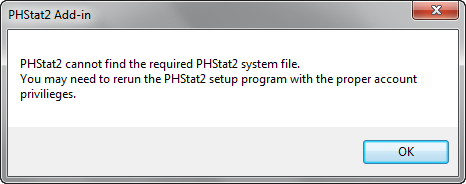
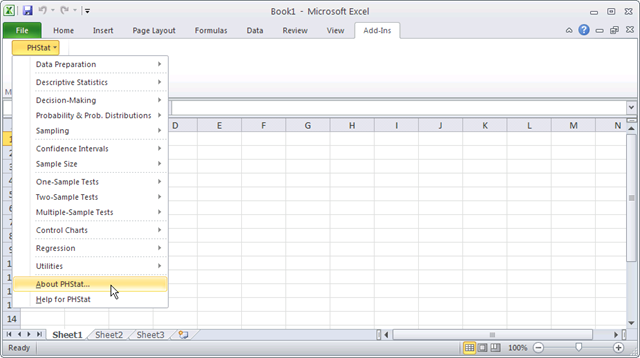
This semester I am taking a Statistics class from Florida Tech, and our textbook from Pearson includes a statistics addon for Excel called PHStat2. It is apparently included in many Pearson textbooks, so even students not in a statistics class may need to use it. I have been running Office 2010 since the Tech Preview release, and am now running Office 2010 Beta x64 on my computer. It works great and has even run some other addons (especially ones for Outlook) without any problems. However, when I installed PHStat2 and tried to start it, I was greeted with this friendly error:
Ouch. I knew it had installed properly, but just to be sure, I reinstalled it and sure enough, I received the same error message. I didn’t want to reinstall Office 2007 just for this class, so I tested it on Office 2010 x86 (the standard 32 bit version) in Virtual PC. Guess what? It worked! Turns out, the only problem before was that the addin wouldn’t work correctly in the 64-bit version of Excel.
Will PHStat2 run on your version of Office 2010?
[box type="note"]This post has been updated with extra info below. Short version: PHStat supports Office 2003 and newer, including Office 2010. 64bit editions of Office 2010 are not supported, but they're also not recommended for standard use by Microsoft, either. Chances are, if you have a recent version of Office on Windows, PHStat2 will work as intended on your computer.
If you’re also running Office 2010 beta on your computer this semester, you likely can still use PHStat2. Here’s what I’ve found from testing in various configurations:
PHStat2 runs perfectly in Office 2010 Beta Professional and Home and Business. This includes the standalone x86 (32-bit) standard installer and the Click2Run (C2R) installer that "streams" the apps from the internet. I encountered no problems whatsoever with it.
PHStat2 does not run in Office 2010 Professional 64-bit (x64). It comes up with an error message stating that it cannot find the required PHStat2 file. This is not entirely surprising, as it is known that many plugins/addons do not work in the 64 bit edition.
PHStat2 does not run in Office 2010 Starter edition. This edition does not support/run macros, and when you try to open the PHStat2 file it says it does not recognize the filetype.
Otherwise, every version of Office (and Excel) from 2003 - 2010 should work fine. And, like I said, the standard install of Office 2010 beta works fine as well.
If for some reason you do not have a copy of Microsoft Office or Excel on your computer, you can actually download a free beta copy of Office 2010 from. This will run until October 2010, so while not a full fix, it will at least more than get you through this semester.
Also, if you have a Mac and are running Office 2003 or 2008, I do not believe PHStat2 will run on your computer. However, if you have a copy of Windows running in Bootcamp or Parallels/Fusion, then you could run Office 2010 beta in it (free download from http://us1.office2010beta.microsoft.com/default.aspx?culture=en-US – will run until October 2010) or an older version of Microsoft Office and just do the exercises in the Windows version of Excel.
Also, there may be an update for the version of PHStat2 that came with your textbook, so check their website at http://www.prenhall.com/phstat/ to see if one’s available. There was an update for mine, and my book was recently published, so be sure to check.
Macro Security
Please note that you may have to accept an “Enable Macros” dialog whenever you run PHStat2. You can change your security settings to always accept the PHStat2 addin by going to File, Options, Trust Center (click on the “Trust Center Settings” button in this dialog), and then select the Trusted Locations tab. Click on the “Add New Location…” button, and browse to PHStat2’s folder (usually C:\Program Files\PHStat2). Once you’ve pressed Ok in the dialogs, PHStat2 should be fully approved and you should not have to click through the “Enable Macros” dialog for it again.
If you encounter any issues with this, let me know and I’ll see if there’s a solution. Have fun with statistics!
Update: I was just contacted by the PHStat2 team with some new info about PHStat2. First, Office 2010's final release didn't emphasize the 64bit version as much as many of us expected. Microsoft officially recommends that most users should use the standard 32bit version of Office 2010, even if they're using Windows 7 x64. For the most part, the only advantage the native 64bit version of Office brings is support for files larger than 2Gb, something most of us don't encounter anyhow. The 64 bit version doesn't work correctly with many addons, including PHStat2, because essentially the new 64bit version works differently and would not work with most existing addons.
Then, PHstat2 is designed to work perfect on all editions of Office since Office 2003. It should work find on Office 2003, 2007, and 2010. It doesn't work on the 64 bit edition of Office 2010, but then again, your chances of running it are incredibly slim. This article was written while Office 2010 was in beta, and at that time it seemed like the 64 bit version would be standard. That's not the case, and now that it's out, most of us are using the 32 bit edition.
Finally, PHStat2 is designed as an educational tool. Sure, you could do many of the same things in Excel itself, and professional users likely will. But if you're learning statistics, you shouldn't have to learn everything about Excel to get started. That's where PHStat2 comes in. It's designed by professors for students, and does do a great job making complex Excel tricks seem easy.
I'd like to extend a special Thank You to the PHStat2 team for stopping by and filling us in on these details. For me, I'm glad I've moved on from studying statistics, but am excited to see their team listening to their customers and working to keep their tool great for the next generations of students!
Microsoft Press often offers eBooks for free, and the Windows 7 launch has prompted several new releases ... for free! I recently saw an article on Rob Margel’s Windows Help blog about a new free guide to Windows 7 from Microsoft (actually, it's from TechNet, though, not Microsoft Press. Keep reading for the Microsoft Press stuff!). It is a very nice PDF that gives a quick overview of some of Windows 7’s newest and greatest features, including the taskbar preview with Aero Peek, Libraries, Windows Snap (my favorite new feature), and more. It’s only 8 pages long, so it is not an in-depth Windows handbook, but if you haven’t been following the development of Windows 7 it can be a great introduction to Windows 7 features. Download it now in PDF form at this link:
And, if you’d like more in-depth coverage of Windows 7, Microsoft Press is offering 10 chapters from recently published books on Windows 7 for free. These cover a wide range of topics including installation, backup, maintenance, the new taskbar, remote access, security, and more. All chapters are available as PDF or XPS files at this link:
Windows Server 2008 R2, the server version of Windows 7, has a free eBook offer too. It includes a number of new features too, such as the newest version of Hyper-V with Live Migration, BranchCache, DirectAccess, and support for up to 256 processors! And students, don’t forget, you can download Windows Server 2008 R2 for free from Dreamspark! So here’s a complete, 182 page guide to every feature in Server 2008 R2 from Microsoft Press, for free. What more could you ask for?
Have you ever wanted to create your own games for your PC? Most people assume game development would be costly and dificult, but today Microsoft has lowered the bar and made it easy for even children to create their own PC games with Kodu. I recently reviewed it at Digital Inspiration, so head to http://www.labnol.org/software/create-video-games-for-windows/12435/ to find out more about this exciting and simple way to create your own games and learn programming skills. Perhaps you can create the next Tinker!
Here’s a second installment with links to my writing that’s been published at Digital Inspiration. Hope you find something interesting and useful here; if you, check out my first list of articles at Digital Inspiration. I will continue to list my new articles going forward, so check back here for updates.
Free Virtualization Software for your Windows PC – FYI, VMware Player and Virtual PC are my favorites, and are essential for testing software. Plus, they can be a lot of fun. One day I did a screenshot on my computer running Vista with a copy of XP, Ubuntu, and freeDOS, all running in their own windows. You could see them all via flip3D, which was cool. Not too practical though, especially as I only had 1Gb of ram in my computer at that time!
How to Use Windows 7 Themes on XP and Vista Computers – this is fun, and will be increasingly useful as more sites have Windows 7 themes for download. And, hey, the XP tip would work on Mac or Linux computers, too!
Comparison of Online Project Management Apps – My personal favorite is 37signals’ Backpack, which I have found great for managing projects even if that’s not its primary purpose. The article does cover 37sitnals’ main project management app, Basecamp, which is great too. Depends on your personal organizational style for which you will like better. Both offer free and paid accounts, so there’s something for everyone! And, the article lists a ton of other options which are very good too, so be sure to check it out. Project Management apps is a crowded field!
Find the Song Name Without Knowing the Lyrics – I’ve said for years that we need an audio search engine, and here are a ton of promising apps that do just that. They don’t recognize everything (or even most songs I like – Christian and Classical), but they’re getting there. Very exciting!
Wow, that was a long list! Once again, remember to check back here at www.techinch.com frequently, as I’ll keep adding my writing from Digital Inspiration and unique articles just for Techinch. And if you’d like to see something covered here, let me know, and I’ll try to cover it either here or at Digital Inspiration. Enjoy!
Communication and teamwork are crucial for the success of any projects. Whether in building something for a contest, organizing a sports team, or writing a class paper together, education is filled with ways that group coordination is crucial. And it ought to be that way, as students must learn these skills to be successful in the workplace. What better way to do that than to use real-life professional collaboration tools, right?
Last spring semester, I was assigned team project in my TeleCampus class from the University of Texas. Excited to put technology to the test, I quickly set my team up with a wiki from PBworks. It seemed simple enough to use. But it turned out to not be so easy. Classmates felt overwhelmed and resorted to emails and merging Word documents, and even I had trouble figuring out some of the system. Eventually, our wiki was abandoned, and the class project hobbled along as every other end-of-20th-century class project had.
In the fall semester, I once again had a group class project at my new college, Florida Tech. This time, I had heard of Writeboard. Writeboard is an amazing product from the people at 37signals, and best of, it’s free! It is an incredibly simple online text editor. That’s it. What, you say? Does it have feature x? Probably not. But that was the problem with PBworks. It had every feature and then some, but everyone was confused by it. Do I click here or there, or both? With Writeboard, we simply were able to focus on writing.
Writeboard does support simple text formatting, e.g. asterisk around a word make it bold (*example*). I actually discovered the formatting by accident, because it is just natural to give emphasis to text like that. It also saves every version of our file, so we could easily see what we’d done before or what someone else changed. We all signed in with a simple password; no new accounts for every student to setup. Everyone in my class found it equally easy to use, and we had a vibrant community helping each other with class notes and the group project. Altogether we had over 4,000 words in one Writeboard; not necessarily recommended, but it shows the power of Writeboard! The tech is so easy to use, everyone enjoyed it. And the important thing is that it actually helped us achieve our goals in ways no other tool had ever done. Even though we techies love new features and tools, the truth is that when something needs to be done, just getting it done is sometimes better!
One other tool that helped our team out was my Backpack account. This great tool, which I hope to write about more in the near future, lets you store lists, notes, links (including Writeboards), and more on easy-to-edit pages. For our class, I made a public page where I put a link to our team’s Writeboard, notes with important deadlines and information about the project, and lists of assignments and participants. It just tied everything in the class together easily and quickly. No starting a new website, designing HTML/CSS, or anything, just getting the job done.
I can’t wait to try this out in my next class group project again. If technology can make group projects both fun and productive, that’s really something! So next time you’re in a group project, give Writeboard and Backpack a try; your team might get more done (and a better grade) too!
Hi and welcome to Techinch.com! This my newest technology blog, and basically I am moving the content from my old Wordpress.com blog, theoldestof8.wordpress.com, to a self-hosted Wordpress solution. You can check out our new About page for more information, but here is a quick rundown. This site is, of course, powered by the excellent WordPress software. After searching extensively, I ended up going with Mochahost as the host for this site. The hosting has been good so far, offer a wide range of hosting services, and their support has been both quick and excellent. They offer both Windows and Linux hosting, and you can always switch if your needs change. Techinch is using a theme from ElegantThemes, which I highly recommend. Their themes are beautiful, price is unbeatable, and their support forums are very helpful.
I hope to post more articles about my experiences setting up this site and the technologies I’m using with it, so check back soon for more. By the way, don’t forget to subscribe to our RSS and Twitter (main and twitterfeed-powered RSS only) feeds! And as always, the majority of my writing appears on Digital Inspiration; I’ll cross-post links to my articles here and at Twitter.
Techinch | Making tech simpler, inch by inch! That’s our motto; let us know how we can do that better!
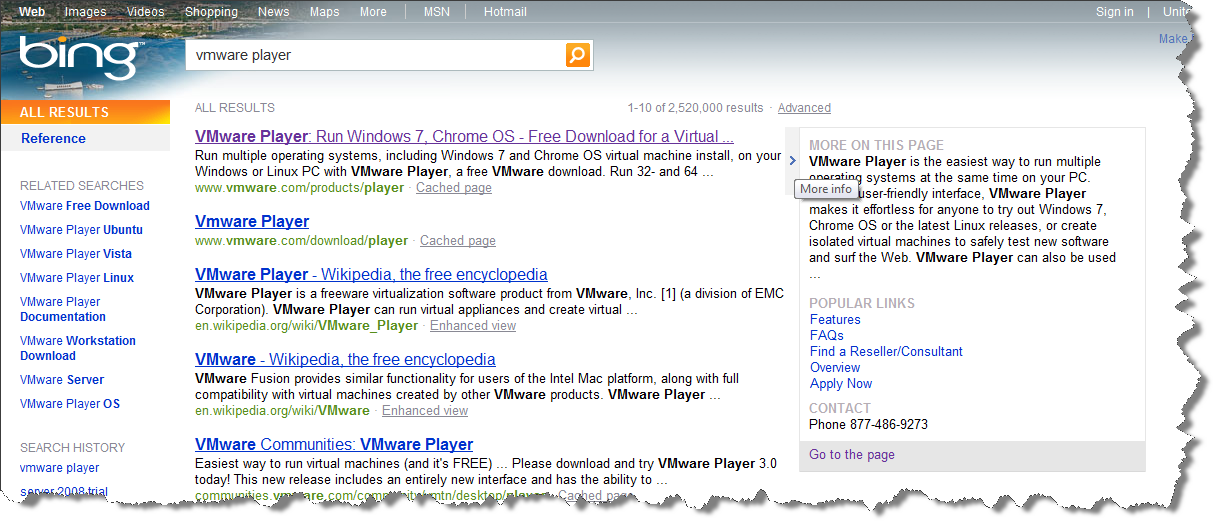
I was doing a quick Bing search for the link to VMware Player for a previous article when I was dumbfounded to see the following link description:
VMware is promoting their product with an unreleased OS ... Chrome OS !?! When I opened the link, it was quick to see that this was indeed the case. The first paragraph on the VMware player page says:
VMware Player is the easiest way to run multiple operating systems at the same time on your PC. With its user-friendly interface, VMware Player makes it effortless for anyone to try out Windows 7, Chrome OS or the latest Linux releases, or create isolated virtual machines to safely test new software and surf the Web.
The interesting thing about this is that VMware has promoted a browser appliance for years. This preconfigured virtual machine essentially contains the Firefox browser in a stripped-down Linux environment, not at all unlike what Google is doing with Chrome OS. Perhaps in the future they plan to offer a prebuilt virtual machine of Chrome OS instead of their own offering.
This is an interesting development for an OS that was only fully unveiled as ongoing project a little over a month ago. Although I can't imagine using an operating system that only contains a browser for my main operating system, I am very interested in what Google will do with Chrome OS. Apparently VMware is too!
Microsoft jump-started the market for small, home-centric servers 2 years ago with the release of Windows Home Server, and they continue to innovate on the platform with the recent Power Pack 3 upgrade. But not everyone has extra money lying around to buy a home server, and many are not convinced of the benefits of running one. If you'd like to see if a Home Server would offer real value to your home or small business, you know longer have to buy a server simply to test it out.
This week, Microsoft started offering a free trial version of Windows Home Server for download. You can easily install it on an old computer, or could even test it in one of the many free virtualization solutions for Windows such as Windows Virtual PC or VMware Player. Simply go to http://www.microsoft.com/windows/products/winfamily/windowshomeserver/eval.mspx, download the ~800Mb ISO image, and either burn it to a disk or attach it directly to your virtual machine. The trial only lasts for 30 days, but you could always reinstall it to give you more time to test it in your home (though of course you would have to reset your settings and re-transfer your files and backups).
If you find Home Server useful, you can easily either purchase an OEM copy of Windows Home Server for around $100 from Amazon, and could even activate your trial copy with the key from your purchased copy. Otherwise you could purchase a stand-alone Home Server if you don't want to use your existing setup.
If Home Server doesn't offer enough power for you, you could try a trial of Windows Server 2008 R2. This is a larger (>3Gb download), but the trial version actually lasts for 180 days. If you're a high school or college student, you can instead get a free full version of Windows Server 2008 R2, 2008, and 2003 R2 through Dreamspark.
Bookworms around the world, rejoice! Amazon’s Kindle for PC is now available, making over 360,000 books only a click away for millions of PC owners worldwide. Announced during the Windows 7 launch event, Kindle for PC has now been released as a beta program today.
Amazon sparked worldwide interest in the eReader market, which is now an increasingly crowded market where the Kindle competes with the Sony Reader, Barnes & Nobel’s Nook, Plastic Logic’s Que, and more. Barnes & Noble and Sony both offer programs to read ebooks from their stores on your computer and other devices. Amazon initially only offered the Kindle program as an iPhone app, but they have now expanded and plan on supporting more platforms in the future. Similar to Microsoft’s Zune, which is a device, a store, and a program for Windows, Kindle is now simply an eBook ecosystem that works with its standalone eReader as well as iPhones, PCs, and more.
Kindle for PC sports a clean, simple UI that integrates nicely with Windows 7 (including support for jumplists and multi-touch on new touch-screen computers) and allows you to easily read your favorite books. After downloading the program, which works on Windows XP, Vista, and 7, you simply sign in with your Amazon account name and password. If you already own a Kindle device or use Kindle on an iPhone, Kindle for PC will automatically download your books complete with your bookmarks, notes, and current reading location in the book. Otherwise, you will be presented with an empty interface that shows helpful popups to highlight Kindle’s features.
New Kindle users will want to purchase an ebook or download a free one from Kindle’s store, and Kindle for PC offers easy access to this on the right hand side of the toolbar. Rather than offering in-app access to Amazon’s Kindle Store, the “Shop in Kindle Store” link simply opens Amazon’s Kindle site in your browser. However, it is very easy to purchase and download a book; if you are logged into your Amazon account, simply click “Buy it now with 1-Click,” and select the device you wish to send the book to (select your PC if you want to read it on Kindle for PC).
Once you have downloaded books, your Kindle interface will display your new digital library. Full color covers allow you to easily find the book you want to read, and you can easily sort your library by author, title, and most recently downloaded. Kindle makes it easy to read books, and allows you to quickly and dynamically change the font size and amount of words per line. Chapters appear as links in the table of contents, so you can easily go to the chapter you want to read. Pages scroll fast and smoothly, and work with multi-touch gestures if you have a touch screen or touchpad. Kindle will automatically remember where you left off reading, and will sync this with all of your devices (including multiple computer or Kindle devices) via Whispersync. Once you are finished with a book you can archive it to save space on your computer, which will then remove them from the computer and make them available for download from Archived Items.
In a strange shortcoming, Kindle for PC is missing several crucial features that are standard on the Kindle eReader and the iPhone app, but Amazon promises to add them in upcoming releases. These include the ability to create notes and highlights, search inside a book, and zoom and rotate images. While you can transfer PDF eBooks to the Kindle device via a USB cable or by emailing them to it, Kindle for PC only lets you read books from the Kindle store. Magazines, Newspapers, and Blogs, all available by subscription on the Kindle device, are not available on the PC (though this is technically not a problem, since you can always read them for free in your browser!). It also lacks the ability to select and copy text, and it does not have an option to print ebooks either. These last limitations may be to reduce the potential of piracy, but they also reduce the functionality of the program. Hopefully Amazon will address these things in upcoming releases as well.
Amazon is well on their way to transforming themselves for a store for physical items to a digital marketplace of digital goods, and Kindle for PC is yet another sign of this. With their MP3 and Video store, game and (some) software downloads, and cloud computing services, they are definitely a leader in digital distribution. And since their digital products are available on an increasing array of devices, they can benefit from a wide potential customer base.
So what are you waiting for? Download Kindle for PC now, and experience the future of Amazon as a digital distributor. And read a good book in the process!
Edit: I reviewed Kindle for PC on a standard computer (using a keyboard + mouse), but here’s a review of how Kindle for PC worked on a HP TouchSmart tx2. Great to see it from all perspectives!

 for around $100 from Amazon, and could even activate your trial copy with the key from your purchased copy. Otherwise you could purchase a stand-alone Home Server if you don't want to use your existing setup.


 , and experience the future of Amazon as a digital distributor. And read a good book in the process!